

It is Tuesday morning. You open your laptop, take a sip of coffee, and log into Meta Business Suite to check your ad campaigns or schedule a week’s worth of client content. Instead of your dashboard, you are greeted by an aggressive red banner:
“Your Business Account is Restricted from Advertising.”
Your heart drops. Your active campaigns are paused, your pixel data is frozen, and you can’t even reply to customer messages. Your entire digital storefront is locked behind an algorithmic wall.
As someone who has managed countless brand accounts, run complex ad campaigns, and lived through this exact nightmare more than once, I know the immediate panic that sets in. Meta’s automated security bots are notoriously ruthless. A sudden change in your login location, a minor payment hiccup, or an ad creative that a bot misinterprets can cause Meta to pull the plug on your Business Suite without warning.
When this happens, most people panic and make critical mistakes that turn a temporary restriction into a permanent ban. If your Meta Business Suite account has been disabled, take a deep breath. Let’s walk through the exact, field-tested recovery strategy to get your assets back, without relying on automated loops that lead nowhere.
The Panic Mistakes to Avoid at All Costs
When Meta locks you out, your natural instinct is to try everything to get back in immediately. However, rushing into the recovery process can ruin your chances of success.
- Do NOT click “Request Review” immediately: This is the biggest mistake I see. When you click that button without fixing the underlying issue, Meta’s automated system scans your account again. If it finds the exact same trigger, your appeal will be rejected automatically, often resulting in a permanent restriction.
- Do NOT create a brand-new Business Manager right away: If your original account is disabled, creating a new one on the same computer will flag you as an evasive user. Meta tracks your IP address, device browser fingerprint, and payment methods. A secondary account created in panic will usually get banned within 48 hours and make your original account significantly harder to recover.
- Do NOT use fake IDs or names: Meta treats individual profiles as the anchor for business entities. If your personal Facebook profile uses a fake business alias instead of your legal name, uploading a government ID that doesn’t match will permanently kill your recovery chances.
Step 1: Diagnose What Actually Got Hit
Before you can fix the issue, you need to understand exactly what Meta restricted. Meta treats personal profiles, specific ad accounts, and the overarching Business Manager as separate assets.
To find out where the damage is, bypass the generic Business Suite dashboard and head directly to Meta’s command center: Meta Business Support Home (formerly known as Account Quality) at [business.facebook.com/accountquality](https://business.facebook.com/accountquality).
Once you are there, look at the asset breakdown to determine your exact restriction level:
| Restriction Type | What It Means | Impact on Business Suite |
| Personal Profile Restriction | Your individual identity has been blocked from performing advertising actions. | You cannot manage or publish ads across any Business Manager you belong to. |
| Ad Account Restriction | The restriction is isolated to one specific ad account, usually due to a flagged creative or payment issue. | Your pages and Meta Business Suite are fine, but that specific ad account cannot spend money. |
| Business Manager Restriction | Meta has flagged your entire business entity. | Your pixel data, catalog, asset sharing, and pages are locked down entirely. |
Identifying the specific asset that is restricted tells you exactly what needs fixing before you submit a formal appeal.
Step 2: Clean Your Assets Before Appealing
If you want a human reviewer to approve your appeal, your account needs to look entirely compliant at the exact moment they open your file. If Meta’s internal compliance system sees ongoing policy violations, the reviewer will click “Deny” and move on.
Take these cleanup steps before attempting to communicate with support:
1.Resolve All Outstanding Balances:Step 1.
Navigate to your billing page. If an ad failed to charge because your credit card expired or your bank flagged a foreign transaction, clear the balance immediately. Meta penalizes accounts with unstable payment histories.
2.Delete Flagged and Paused Ad Creatives:Step 2.
Go into your Ads Manager and look for any ads marked as “Rejected.” Don’t just leave them paused — delete them entirely from the campaign dashboard. Even a paused ad with an outstanding policy violation counts against your account’s health.
3.Review Your Landing Pages:Step 3.
Meta’s web scrapers inspect your destination URLs. Ensure your website doesn’t have broken links, sensationalist claims, or missing privacy policies. If your landing page looks sketchy, your Business Suite will stay locked.
4.Enforce Basic Security Hygiene:Step 4.
Ensure that every single administrator inside your Meta Business Suite has Two-Factor Authentication (2FA) enabled on their personal Facebook profiles. Meta frequently restricts business managers simply because an admin’s account looks vulnerable to hacking.
Step 3: Submitting an Effective Appeal
Once your account is clean, return to the Meta Business Support Home screen. Look for the “What you can do” section on the right side of the page. If the option is available, click Request Review.
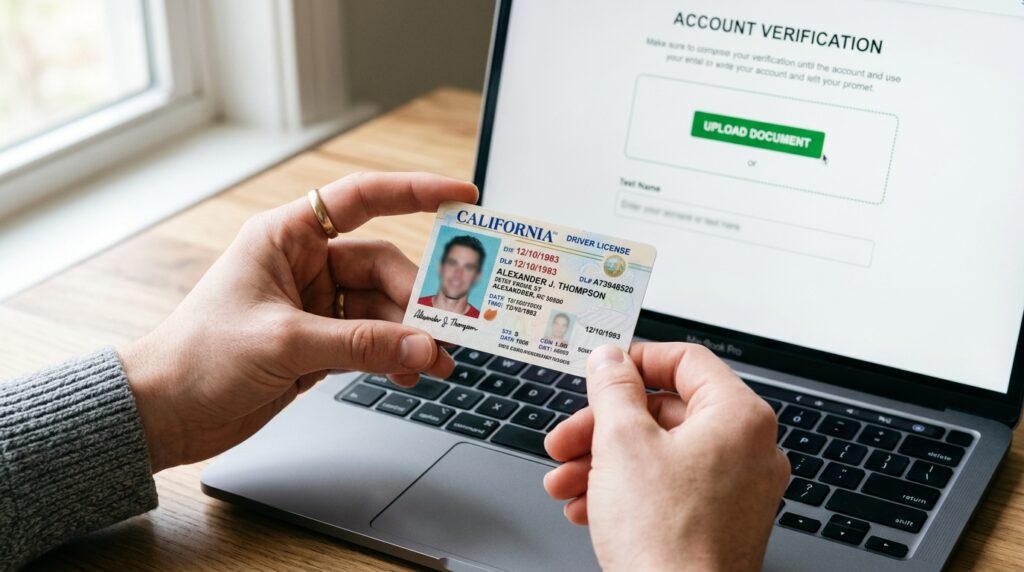
At this stage, you will often be prompted to complete identity confirmation. This involves uploading a clear, uncropped scan of your driver’s license or passport. Ensure the name, birthdate, and face photo perfectly match the details on your personal Facebook profile.
If the system gives you a text box to explain your case, avoid writing an emotional, angry message. Demanding your account back or complaining about lost revenue will not help your case. Instead, remain professional, brief, and objective.
Here is a simple, effective template I use for standard appeals:
Appeal Template:
“Dear Meta Support Team, My business account [Insert Business ID] was recently restricted from advertising. We suspect this may have been an automated security flag triggered by a recent change in our access location [or newly updated payment method]. We have thoroughly reviewed Meta’s Advertising Policies and clarified that all our business assets are fully compliant. We have also verified our identity and ensured 2FA is active across all administrators. Please review our account status to restore our business functions. Thank you for your time.”
Once submitted, standard reviews generally take anywhere from 24 hours to a few business days. Monitor your email and Facebook notifications closely for updates.
Step 4: The Escalation Path for Difficult Cases
What happens if your appeal is rejected, or if the “Request Review” button is grayed out and unavailable? This is where most advertisers throw in the towel, but you still have options. You need to bypass the automated system and find a direct line to a real person.
Use Meta Verified to Unlock Live Chat
Standard live chat support is typically reserved for accounts spending thousands of dollars a month on ads. However, you can bypass this restriction by subscribing to Meta Verified on a real employee’s or your personal Instagram or Facebook profile. For roughly $15 a month, Meta Verified gives you access to direct live chat support with real humans.
Once you get a chat agent on the line, don’t select “Advertising Restriction” as your primary topic if the option is broken. Select “Billing” or “General Account Security” to establish contact. When connected, politely provide your Case ID and Business Manager ID, explain that your account was restricted in error, and ask them to manually escalate your ticket to the internal policy team.
The “Orphaned Asset” Admin Dispute
If your Business Manager was set up by an old agency or a past employee whose profile is now inaccessible, you cannot recover it through standard means. In this situation, you must treat your Facebook Page or Instagram account as an “orphaned asset.”
You can use a clean, verified business account to contact support and file an Admin Dispute. You will need to upload a formal, signed Attestation Letter on your official business letterhead, alongside legal business registration documents (like Articles of Incorporation or a business utility bill) proving that your company legally owns the trademark and brand assets. Meta’s internal legal teams can strip the page away from the disabled Business Manager and release it back to your new, clean setup.
Moving Forward Securely
Experiencing an account restriction is an incredibly frustrating hurdle, but it highlights why you shouldn’t rely entirely on a single point of failure.
Once you recover your Meta Business Suite account, protect your operations by adding at least two trusted backup administrators to your Business Manager. Diversify your digital marketing footprint by driving customer traffic to an independent email list or alternative organic channels. By taking a systematic approach to platform compliance and securing your backup communication lines, you can ensure that an automated algorithmic flag won’t disrupt your business operations again.