
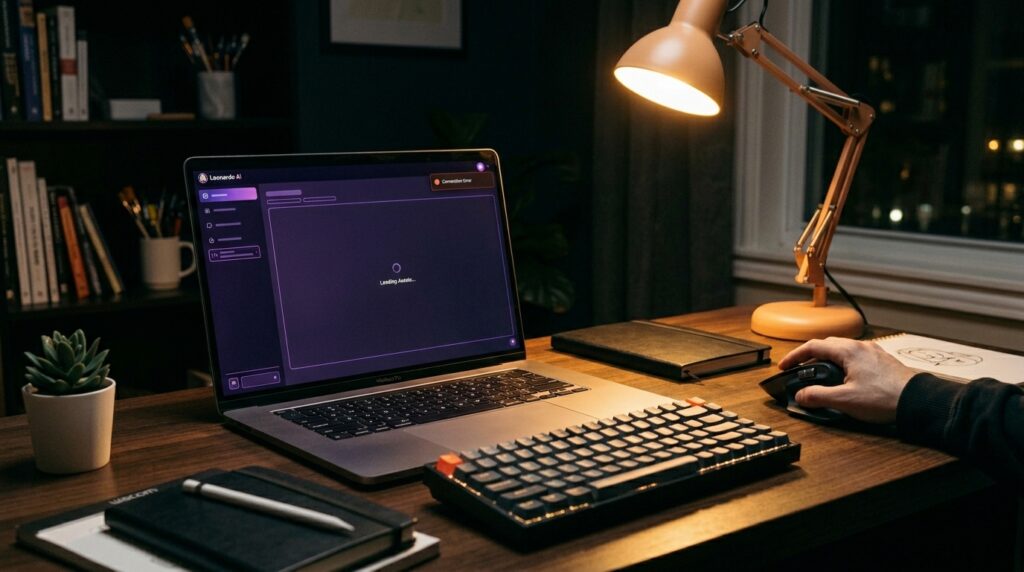
You have your masterpiece of a prompt lined up. You have spent ten minutes tweaking the artistic style settings, setting up your image guidance references, and picking out the perfect aspect ratio. You hit the generate button, leaning back in your chair to watch Leonardo AI work its magic.
Instead, the asset queue blocks up. The screen grinds to a halt, displaying an endless dark purple loading skeleton, or a tiny, blunt notification slides onto your screen: “Connection error” or “Generation failed.” You refresh, only to find the entire web canvas app refuses to load past the main logo screen.
If you rely on Leonardo to generate high-quality visual content, character models, or marketing assets, hitting a loading block feels like getting your creativity locked behind a paywall. I hit this exact roadblock last week while trying to render consistent cinematic characters for a short-form video project. The app interface kept completely freezing, leaving me staring at a blank, glowing dashboard.
Because Leonardo AI features a deeply visual, interactive web app design packed with real-time canvas editors, custom fine-tuned model menus, and live motion layers, it demands far more from your browser and network routing than a standard text-based tool. If a script fails to compile locally, or if WebSockets get choked up, the whole canvas crashes.
Before you start tearing down your computer settings or worrying that your premium tokens are lost, let’s walk through the exact practical methods to unstick Leonardo AI and get your generation queue flowing smoothly again.
Why Is Leonardo AI Failing to Load?
When Leonardo goes dark, it isn’t throwing a random error. The web interface is failing to execute its heavy canvas scripts. Through continuous troubleshooting, I’ve found that the loading breakdown usually maps back to one of these common bottlenecks:
- WebGL and GPU Pipeline Stall: Leonardo’s interactive canvas layers heavily utilize your computer’s graphics card via WebGL. If your browser’s hardware acceleration engine stalls out, the workspace cannot render.
- Aggressive Script Blocking: Popular privacy extensions and ad-blockers classify Leonardo’s live data streams as aggressive third-party tracker scripts and shut them down mid-load.
- Token Synchronization Glitches: Your account’s authentication cookie token has lost alignment with the live server, making the app believe you have zero credits or zero authorization to pull down data.
- Server-Side Queue Overload: When an advanced new base model drops, millions of concurrent render requests slam Leonardo’s cloud server infrastructure, occasionally forcing temporary regional connection drops.
Step-by-Step Fixes to Revive Your Workspace
Follow this practical roadmap to isolate where the connection broke down and force Leonardo to reload your canvas safely.
1. The Incognito Baseline Check
Before you spend ten minutes clearing out stored passwords or reinstalling browser configurations, you need to verify if the loading freeze is a global application error or just a local profile conflict.
Open a fresh Incognito / Private Window and go directly to app.leonardo.ai.
- If it loads perfectly: Your account is fine. The issue is a corrupted file or an active extension sitting inside your main browser window.
- If it still blocks or fails: The bottleneck is happening on a network-wide level (your router/VPN) or Leonardo’s backend servers are currently undergoing maintenance.
2. Force a Targeted Cookie and Session Purge
If the Incognito test proved your browser profile is holding a grudge, you need to strip away old configuration scripts. Leonardo frequently updates its interface architecture, and stale local site cookies can throw the new code completely off balance.
You don’t need to clear your whole browsing history for this. You can target Leonardo exclusively:
- While on the Leonardo AI page, look up at your browser’s address bar and click the small padlock icon on the far left.
- Select Site settings or Cookies and site data.
- Choose Manage cookies and site data.
- Click the trash bin icon next to any entries pointing to
leonardo.aiorapp.leonardo.ai. - Close the tab, open a new one, and log back in manually. This forces the server to issue a fresh, uncorrupted authentication token to your account profile.
3. Verify and Enable Hardware Acceleration
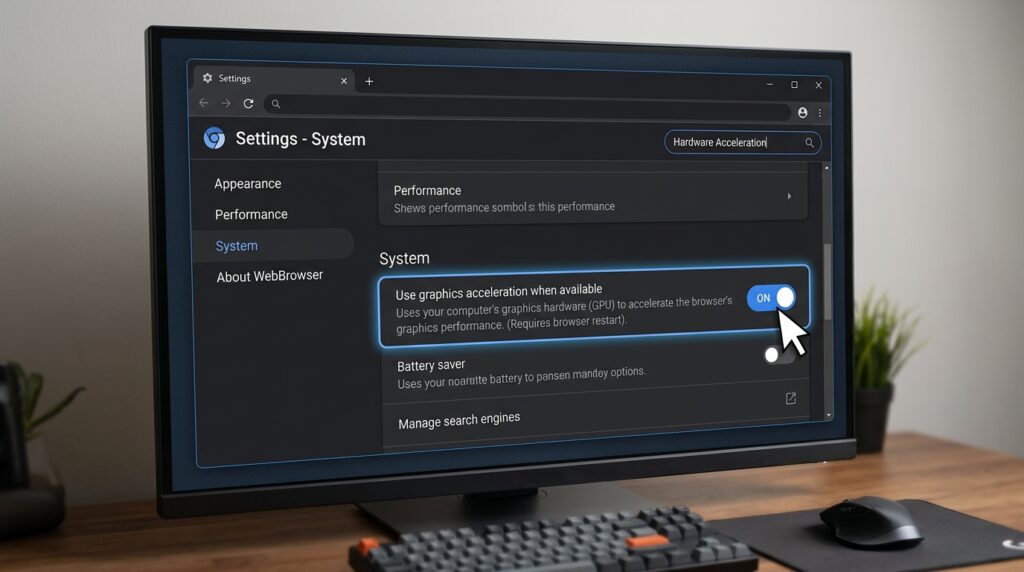
Because Leonardo is a visual-first design surface, its complex image generation sliders, canvas models, and motion features require a direct line to your device’s graphics processor. If your browser isn’t configured to use your GPU, the interface will lag, stall, or refuse to display rendering results.
To fix this on Google Chrome or Microsoft Edge:
- Click the three dots in the upper-right corner of your browser and select Settings.
- Type “Hardware Acceleration” directly into the settings search box.
- Look for the option labeled “Use graphics acceleration when available” and toggle it ON.
- Relaunch your browser completely so the computer can assign GPU assets to your active tabs.
4. Turn Off Over-Protective Script Blockers
If you use heavy ad-blocking extensions or deep tracking protection tools (like uBlock Origin, Brave’s built-in shields, or Privacy Badger), they can inadvertently break Leonardo’s real-time generation windows. These extensions see Leonardo’s continuous WebSocket data streams as unauthorized background trackers.
- Look up at your extension bar while trying to load the Leonardo app.
- Click on your active ad-blocker or security shield tool.
- Toggle the protection completely OFF for
*.leonardo.aiand refresh the page using Ctrl + Shift + R (or Cmd + Shift + R on Mac). - If your canvas options and generation histories pop back up instantly, you’ve found the culprit. You can leave the shield disabled strictly for Leonardo without exposing the rest of your browsing to ads.
5. Change Your Network Path (VPNs & Public DNS)
Leonardo AI uses globally distributed data networks to route your image prompt requests to its central GPU banks. If your local internet service provider (ISP) has an unstable network path to these specific cloud centers, your requests will time out.
- The VPN Toggle: If you are running an active personal VPN, turn it off completely or switch your location to a different continent (like moving from a local node to a US or European node). If you aren’t using a VPN, turning one on can often map you around a localized internet bottleneck.
- The Cellular Hotspot Test: Disconnect your computer from your home Wi-Fi and connect it to your smartphone’s Cellular Data Hotspot. If Leonardo loads instantly over your phone’s network, your home router’s firewall settings or DNS configurations are actively throttling the application.
Common Mistakes to Steer Clear Of
When your generation window goes blank, avoid these common counter-productive reactions:
- Spamming the Generate Button on Error: If an image fails to appear, do not repeatedly click the generate button. If the issue is simply a slow interface render, your clicks are still sending requests to the backend. You could accidentally burn through your daily token balance on generations you can’t even see yet.
- Wiping the App Storage on Mobile App Versions: If you use the iOS Leonardo app and it freezes, do not click “Clear App Storage” through your phone’s main settings menu until you verify your custom models are synced. Doing a raw system flush can sometimes wipe away un-synced local fine-tuning presets.
Final Thoughts
Staring at a spinning purple wheel when you have concepts to create is a huge buzzkill, but Leonardo’s loading issues are almost always an easy fix. By isolating your browser extensions, validating your graphics hardware settings, and ensuring your local network paths are clean, you can easily clear out the layout errors. Keep your browser workspace optimized, clear your site data periodically, and let the generation tools do the heavy lifting without the technical drag.