
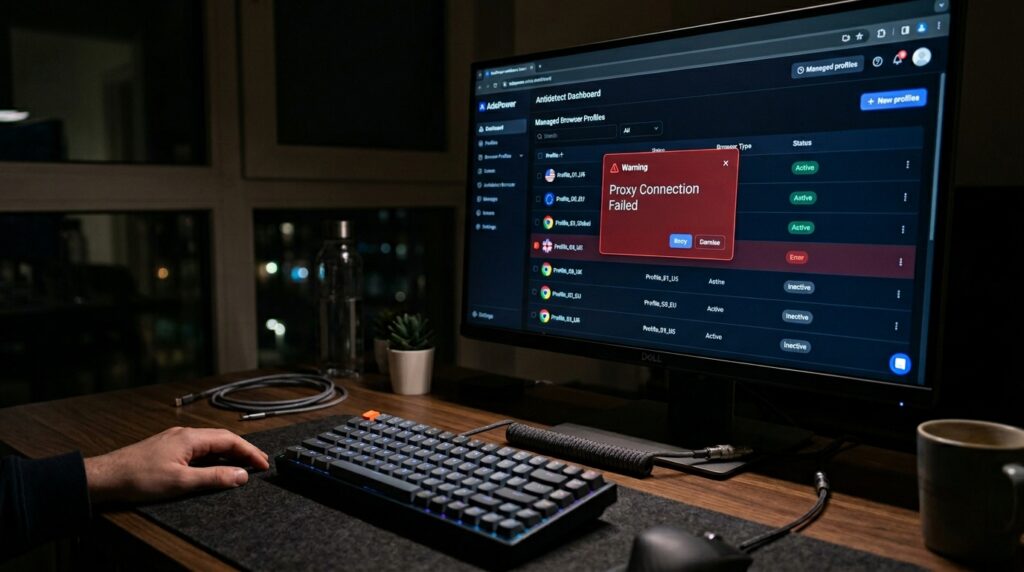
You are in the middle of scaling your multi-account setup—maybe managing international social profiles, optimizing ad campaigns, or running automated channels—and you open AdsPower. You click “Open” on a profile that ran flawlessly yesterday.
Instead of jumping straight into your target site, the loading sequence halts, and an aggressive, red-lettered warning slaps you across the dashboard: “IP Address Mismatch” or “Proxy Connection Failed.”
If your entire digital operation relies on antidetect browser isolation, this error feels like a complete emergency. Your heart sinks because an IP mismatch means one dangerous thing: the isolated environment is failing to hide your footprint, and your account is at risk of being linked and permanently banned.
I ran into this exact brick wall a couple of weeks ago while managing a batch of USA-targeted accounts using high-quality static residential proxies. The AdsPower profile refused to launch, claiming the outbound IP didn’t match the configuration logs.
After spending a few hours digging through connection protocols, clearing internal local file paths, and tweaking environment fingerprints, I found out why this happens. Let’s look at why AdsPower throws this defensive flag and walk through the exact practical steps to fix it safely.
What Actually Causes an “IP Address Mismatch” in AdsPower?
Unlike a standard browser that blindly connects to whatever internet line is available, AdsPower acts like an analytical security guard. Before it allows a browser profile to fully load a webpage, it pings an internal IP checker (like ip-api or browserleaks) to verify that the outbound connection completely matches the parameters you saved.
If AdsPower detects a discrepancy, it throws an IP mismatch warning as a fail-safe to protect you. In my experience, this breakdown happens due to three main technical roadblocks:
- Rogue Extension Leaks: You installed a VPN or proxy-related extension directly inside that specific browser profile, and its internal routing script is conflicting with AdsPower’s core proxy engine.
- Stale Local Preference Cache: Old, corrupted cache data from previous sessions is trapped inside AdsPower’s profile folder, forcing the browser to read your native network settings instead of the custom proxy line.
- Dynamic IP Rotation Overlap: If you are using rotating mobile or residential proxies, the provider may have rotated your exit node IP address right as the browser was initiating its launch sequence.
Step-by-Step Fixes to Clear the IP Mismatch Error
Don’t panic and delete your profile or start randomly guessing your proxy passwords. Follow this logical, battle-tested checklist to identify the exact point of failure.
1. The 10-Second Proxy Status Check
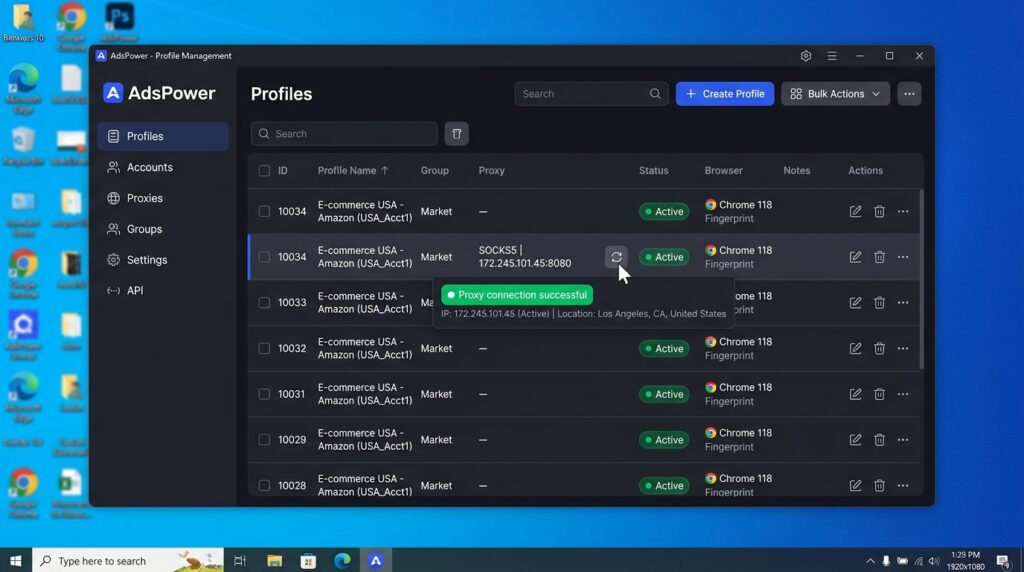
Before tearing into your system files, verify if the proxy server itself is online. AdsPower includes a built-in testing kit that can save you a ton of diagnostic time.
- Go to your AdsPower main menu and click on the Profiles or Proxies tab.
- Find the problematic profile, look at the proxy details column, and click the small “Check Proxy” refresh icon.
- If it turns Green: The proxy line is active and working beautifully. The mismatch is entirely caused by a local browser setting or cached file.
- If it turns Red: The proxy server is completely offline, expired, or your home IP address needs to be whitelisted on your proxy provider’s dashboard.
2. Kill Rogue Extensions via chrome://extensions
If your proxy checker turns green but the profile still throws an IP mismatch error upon launch, an internal browser extension is likely hijacking your network routing.
I once installed a quick web-scraping tool extension into a profile, completely forgetting it had a built-in proxy utility. It immediately clashed with AdsPower, overrode my static residential IP, and leaked my local connection.
Here is how to clean it up:
- Open the problematic AdsPower profile (if it allows you to bypass the warning into a blank page).
- In the URL address bar, type
chrome://extensions/and hit Enter. - Look closely at every installed add-on. Completely remove any extension related to VPNs, ad-blockers with proxy features, or specialized script managers.
- Close the profile and run the AdsPower proxy check again.
3. Wipe the “Preference” Cache Files (The Deep Force-Fix)
If you removed a bad extension but the mismatch persists, it means stale cache data is trapped in your profile’s hidden system directories. You need to manually flush the application’s underlying preference logs.
For Windows Users:
- In the upper-left corner of your AdsPower client dashboard, click File > Cache. This opens your local system explorer directly inside AdsPower’s data hub.
- Go back to your AdsPower profile management screen and note the exact Account ID string for the broken profile (e.g.,
ID: H12345). - Inside your Windows file explorer window, locate the folder matching that specific Account ID and open it.
- Drill down into the directory path:
Defaultfolder. - Look for two specific files named
PreferencesandSecure Preferences. - Delete both of these files completely.
Don’t worry—deleting these will not erase your accounts or saved cookies; it simply forces AdsPower to rebuild its core fingerprint and proxy connection rules from a perfectly clean slate upon your next launch.
4. Adjust the Environment Fingerprint Controls
If you use dynamic residential proxies that change IPs every few minutes, a slight location variation can trigger AdsPower’s mismatch defenses. You need to tell the browser engine how to handle dynamic updates.
- Locate your profile on the dashboard, click the three dots icon, and select Edit.
- Scroll down through the fingerprint parameters until you reach Advanced or Environment Settings.
- Look for the toggle labeled “Real-time match the corresponding timezone and location when the dynamic IP changes” or “Match timezone and geolocation automatically.”
- Ensure this is turned ON. This setting tells AdsPower to automatically adjust your browser profile’s internal clock and location spoofing to align with your proxy’s new exit node on the fly, preventing a fingerprint conflict.
Common Mistakes to Steer Clear Of
When you are stressed out trying to get your profiles back online, avoid these common counter-productive pitfalls:
- Launching Profiles with a Red Status: AdsPower will sometimes let you click “Open” even if the initial proxy check failed. Never ignore a red connection status icon. Forcing a launch on a broken proxy can cause the session to drop back onto your local home internet line, instantly exposing your real digital footprint to platforms like Google Ads or Facebook.
- Mixing Protocols: If your proxy provider explicitly gave you
SOCKS5credentials, do not selectHTTPorHTTPSin the AdsPower drop-down configuration menu. Mixing up the protocol structures will result in a silent connection failure or a hard network mismatch.
Final Thoughts
An IP address mismatch error in AdsPower can be incredibly stressful, but it is actually proof that the browser’s built-in security filters are doing their job—protecting your real-world identity from accidental exposure.
By systematically running a status check, removing conflicting network extensions, or purging the stale preference cache files from your local directory, you can safely clear out the communication blocks. Keep your proxy credentials clean, monitor your connection statuses before launching profiles, and your multi-account ecosystem will stay running smoothly and securely.
If you want a visual overview of setting up clean proxy lines inside the browser framework to avoid these connection issues altogether, check out this comprehensive AdsPower Proxy Setup Tutorial. This video breaks down how to integrate various proxy types correctly so your environment tests pass with a clean green status right from the start.