
I was right in the middle of uploading a huge folder of raw video assets to my shared drive last week when my connection completely tanked. I looked down at the system tray, and the familiar little Wi-Fi globe icon had transformed into that dreaded gray planet with a “no access” symbol.
A few seconds later, it reconnected on its own. Two minutes later, it dropped again.
This loop repeated every few minutes until I was ready to throw my laptop out the window. My phone, sitting right next to my mouse pad, had full bars and wasn’t dropping a single packet. The problem was entirely local, and it was entirely Windows 11.
If you are dealing with a Windows 11 machine that randomly severs its wireless connection every time you try to stream a video, jump on a Zoom call, or play a game, you are definitely not alone. Following a string of recent cumulative updates (including the chaotic May 2026 Patch Tuesday rollout, KB5089549), Microsoft’s network management stack has been causing absolute havoc with network card drivers.
The good news is that your network card isn’t fried. It is almost always a software conflict where Windows tries to override your hardware settings or mishandles its own security protocols.
Here is the straightforward, zero-jargon guide to tracking down the bottleneck and stabilizing your Wi-Fi for good.
Why Windows 11 Keeps Dropping Your Connection
When your wireless signal cuts out, it’s rarely because the physical radio inside your computer stopped working. Instead, it’s usually caused by three distinct system level conflicts:
- Aggressive Power Management: Windows 11 has a tendency to be overly enthusiastic about saving battery life. By default, it can literally cut power to your Wi-Fi chip if it thinks the device is idling for a split second, causing a sudden disconnection.
- The Random MAC Address Loop: Windows 11 features a privacy setting called “Random Hardware Addresses.” It alters your machine’s digital footprint so networks can’t track your location. However, many home routers see this sudden MAC address change as an unauthorized rogue device and instantly boot your laptop off the network.
- Driver Handshake Failures: Recent updates have broken how popular Intel (like the AX211) and Realtek wireless chips negotiate security protocols (WPA2/WPA3) with modern Wi-Fi 6 routers, leading to a loop where the driver crashes out of confusion and restarts itself.
The Step-by-Step Fixes to Restore Network Stability
Before resetting your router or calling your internet service provider, work through these local Windows 11 configurations sequentially.
Step 1: Kill the Wi-Fi Power-Saving Features
This is the single most common culprit for laptops. Windows turns off the wireless card to save power, but then struggles to wake it back up cleanly, resulting in a sudden disconnect.
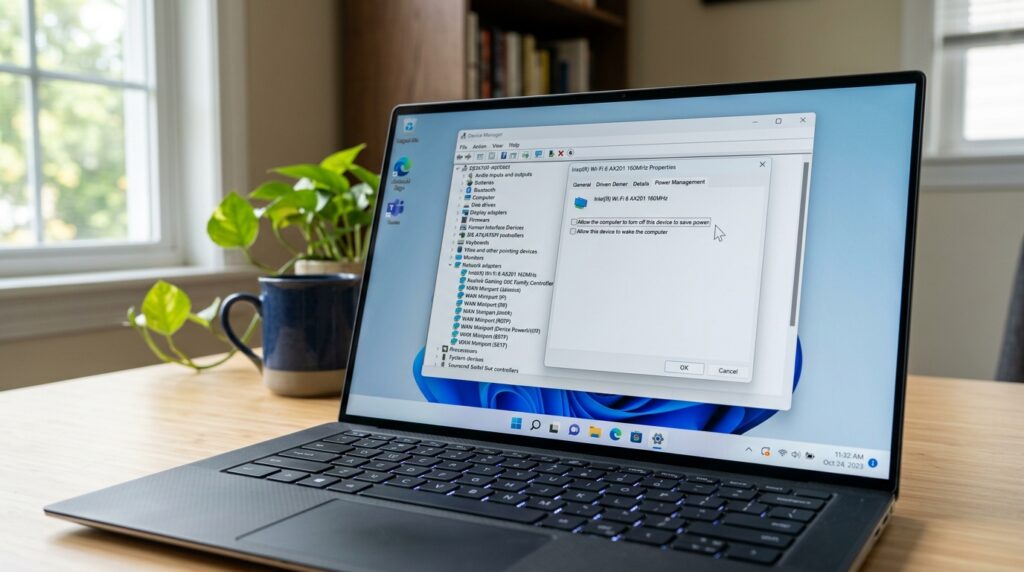
- Right-click on the Start Menu button and select Device Manager.
- Scroll down and expand the Network adapters category.
- Locate your wireless card (it will usually say Intel Wi-Fi, Realtek, or Qualcomm Atheros). Right-click it and choose Properties.
- Look for a Power Management tab along the top. If you see it, uncheck the box that says: “Allow the computer to turn off this device to save power.” Click OK.
[Device Manager] ──► [Wireless Adapter Properties] ──► [Power Management] ──► Uncheck "Allow Turn Off"
Note: If the Power Management tab is missing on your device, don’t panic. Microsoft has hidden it on certain modern laptops utilizing Connected Standby. Move straight to Step 2.
Step 2: Disable Random Hardware Addresses
If your Wi-Fi disconnects specifically when you move between rooms or after your computer wakes up from sleep, your router is likely rejecting Windows’ cycling privacy keys.
- Press the Windows Key + I to open your Settings panel.
- Click on Network & internet on the left menu, then select Wi-Fi on the right.
- Look for the setting toggle labeled “Random hardware addresses”.
- Switch this setting to Off.
Settings ──► Network & Internet ──► Wi-Fi ──► Random Hardware Addresses [OFF]
Once turned off, click on Manage known networks, select your home Wi-Fi, click Forget, and then reconnect fresh with your password. This establishes a clean, unchanging lease with your router.
Step 3: Shift the Advanced Wireless Mode (For Wi-Fi 6 Routers)
If your computer drops the connection specifically when under a heavy load (like downloading a game or streaming a 4K video), your network card is likely choking on high-frequency Wi-Fi 6 (802.11ax) or roaming protocols.
- Head back into Device Manager and open your wireless card’s Properties again (just like in Step 1).
- This time, navigate to the Advanced tab.
- Inside the Property list, look for 802.11n/ac/ax Wireless Mode or Ultra High Band.
- Click the value dropdown menu on the right. If it is currently set to 802.11ax, try rolling it back to 802.11ac.
- In the same list, find MIMO Power Save Mode and change its value to No SMPS (Static MIMO Power Save). Click OK.
This downshifts the protocol slightly, moving you onto a rock-solid legacy wireless standard without sacrificing your day-to-day internet speeds.
Step 4: The Ultimate Network Stack Flush
If settings tweaks didn’t cut it, your system’s internal IP registration cache might be thoroughly corrupted from a recent patch update. We can force a clean slate using the Command Prompt.
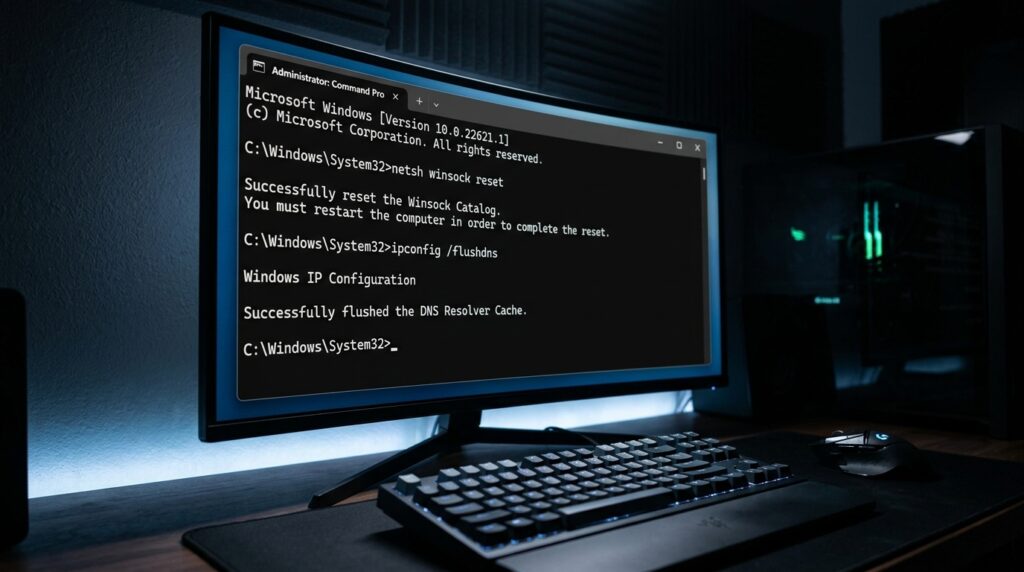
- Click your Windows search bar, type cmd, right-click on Command Prompt, and choose Run as administrator.
- Type the following commands one after another, hitting Enter after each single line:
netsh winsock resetnetsh int ip resetipconfig /releaseipconfig /renewipconfig /flushdns
- Restart your PC completely.
This forcefully flushes your DNS records, tears down your old local IP allocations, and cleanly rebuilds your internet communication sockets from absolute scratch.
Common Mistakes to Watch Out For
When troubleshooting wireless issues, a lot of people accidentally make things worse by overcomplicating the problem. Keep an eye out for these traps:
- Mistake #1: Installing Shady Third-Party “Driver Booster” Software.If you search for Wi-Fi fixes online, you’ll find endless articles urging you to download automated driver utility software. Avoid these completely. They often pull generic, unverified network drivers that can permanently break your connection profile. Only pull drivers directly from your laptop manufacturer’s official support page (like Dell, HP, or ASUS) or Intel’s native driver assistant tool.
- Mistake #2: Confusing a Windows Bug with Hardware Overheating.If your Wi-Fi card works flawlessly for exactly twenty minutes and then vanishes completely from Device Manager until you shut the machine down, it’s likely an environmental heat issue, not a Windows configuration bug. Thin laptops can bake the network chip if dust blocks the intake vents. Grab a can of compressed air and clean out your fans before diving deep into system settings.
- Mistake #3: Leaving Secondary Automated Connections Active.If your computer has “Connect automatically when in range” checked for three different neighboring networks or a secondary 2.4GHz guest band on your own router, Windows 11 will aggressively try to jump between them if your primary 5GHz signal drops by a single bar. Go to Manage Known Networks and strip away auto-connect rights for everything except your primary household access point.
The Bottom Line
A constantly dropping internet connection can kill your entire day’s momentum, but on Windows 11, it’s usually just a symptom of mismatched configurations between aggressive OS background optimization and your router’s security protocols.
By killing the adapter’s power-saving privileges, disabling shifting MAC addresses, or flushing out the IP stack, you can generally anchor your machine to a completely stable connection.
If you’ve checked off every single step on this list and you’re still getting kicked offline every hour, try checking your router’s admin panel to see if there is a setting called 802.11r (Fast Roaming) turned on. Disabling that on your router side will often permanently resolve any remaining drop-offs for modern Windows 11 clients.
This video walks through how to generate a secret, hidden Windows Wi-Fi health report (netsh wlan show wlanreport) to pinpoint the exact second your driver fails.