

We’ve all been there. You’ve got two minutes before a massive client pitch or a weekly team sync. You click the invite link, join the call, and say a confident, “Hey everyone!”
Nothing. Just blank stares.
Then comes the dreaded chat message: “Hey, we can’t hear you. Are you muted?” You frantically click the little microphone icon in the bottom-left corner of Zoom. It’s not muted. You try unplugging your headset. Still nothing. By the time you finally figure it out, you’re ten minutes late, sweating, and flustered.
As someone who spends hours every week managing web development projects, running client onboardings, and hopping from one virtual meeting to another, I have faced this exact nightmare more times than I care to admit. Laptop microphones are notoriously finicky, and Zoom has a weird way of losing track of them after a system update or when switching between Bluetooth devices.
If your laptop mic has suddenly decided to go on strike during Zoom calls, don’t panic. You don’t need a degree in computer science to fix it. Let’s walk through the exact troubleshooting steps I use to get things working again, from the stupidly simple fixes to the deep system settings.
The Mistakes We Make When Panicking
Before diving into the fixes, let’s talk about a few things I used to do wrong when my mic stopped working. Knowing what not to do will save you time and keep you from accidentally making the problem worse.
- Smacking the laptop housing: It sounds silly, but when a device doesn’t work, our caveman instincts kick in. Modern laptop mics are tiny digital chips soldered directly onto the motherboard or the webcam array. Physical tapping won’t fix a software glitch, but it might loosen a fragile cable connector.
- Reinstalling Zoom immediately: This is a massive time-waster. Nine times out of ten, the issue isn’t the Zoom app itself. It’s either a Windows/macOS privacy setting or a hardware conflict. Leaving a meeting to reinstall the app should be your absolute last resort.
- Assuming the mic is physically broken: Hardware failure is actually quite rare. If your microphone worked yesterday, it’s almost certainly a software conflict, a background app hogging the audio channel, or an operating system update that wiped out your preferences.
Step 1: The Quick “In-Meeting” Reality Check
If you are currently sitting in a meeting while reading this, let’s start with the immediate fixes inside the Zoom interface.
Look at the Mute icon in the bottom-left corner of your Zoom window. Next to it is a tiny upward-facing arrow (^). Click that arrow right now. This opens your audio selection menu, which looks something like this:
| Menu Section | What It Displays | What to Do |
| Select a Microphone | A list of all audio input sources detected by your computer. | Ensure your built-in mic (often called “Realtek Audio,” “Intel Smart Sound,” or “MacBook Pro Microphone”) has a checkmark next to it. |
| Select a Speaker | Your current sound output options. | Double-check that this is set correctly so you can actually hear the other participants. |
| Test Speaker & Microphone | A built-in diagnostic tool. | Click this to run a quick loopback test. |
When you run the Test Speaker & Microphone utility, Zoom plays a short ringtone to test your speakers, then asks you to speak out loud to record a brief audio clip. If you speak and don’t hear your own voice repeated back to you, the issue lies deeper within your laptop’s settings.
Step 2: The Privacy Settings Trap (The #1 Culprit)
If Zoom has the right microphone selected but still isn’t picking up your voice, this is almost always caused by system privacy restrictions. Both Windows and macOS have strict security features designed to stop malicious software from secretly listening to you. Sometimes, a system update resets these permissions, blocking Zoom entirely.
On Windows 10 and 11
- Open your Start Menu and click the gear icon to open Settings (or press
Windows Key + I). - Navigate to Privacy & Security (on Windows 11) or Privacy (on Windows 10).
- Scroll down the left sidebar until you find App Permissions, then click on Microphone.
- First, make sure Microphone access is toggled On globally.
- Next, scroll down to the section labeled Let desktop apps access your microphone. Ensure the main switch is turned on, and verify that Zoom Meetings is explicitly listed and enabled in the list below.
On macOS
- Click the Apple Menu in the top-left corner of your screen and select System Settings (or System Preferences).
- Click on Privacy & Security in the sidebar.
- Select Microphone from the list of options.
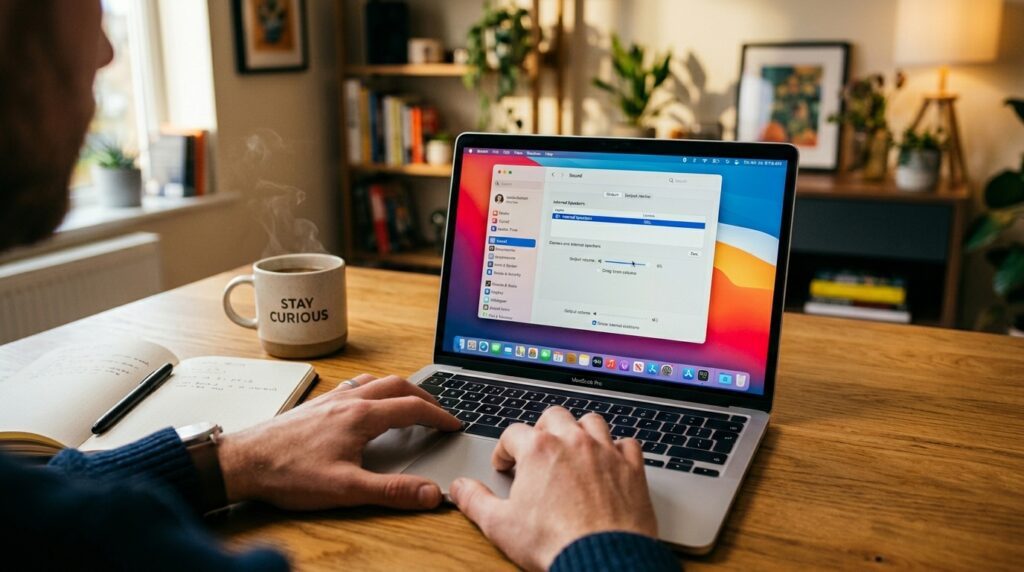
- Look for Zoom.us in the list of applications on the right. If the toggle next to it is turned off, switch it back on. You might need to enter your Mac’s admin password to authorize the change.
- If Zoom is turned on but still not working, toggle it off, restart Zoom, and toggle it back on to force the operating system to refresh the link.
Step 3: Fixing Windows Audio Driver Glitches
If you are a Windows user, audio drivers are the translation layer between your physical microphone and the software you run. They break down surprisingly often. If Windows installs a generic driver automatically, it can cause your microphone input level to drop to zero percent.
Let’s check your system’s hardware levels to see if the mic is actually hearing anything at all:
1
Open Sound Control Panel
Step 1
1.Open Sound Control Panel:Step 1.
Press Windows Key + R to open the Run dialog box. Type mmsys.cpl and press Enter. This bypasses the clunky modern settings app and takes you straight to the reliable, classic Windows Sound interface.
2
Locate Your Recording Device
Step 2
2.Locate Your Recording Device:Step 2.
Click on the Recording tab at the top of the window. You should see your internal microphone listed here. Speak out loud. Do you see the green volume bars on the right side of the screen moving up and down?
3
Unmute and Boost Levels
Step 3
3.Unmute and Boost Levels:Step 3.
If the green bars aren’t moving, double-click your active microphone to open its properties. Go to the Levels tab. Make sure the volume slider is set to at least 80% and ensure the little speaker icon does not have a red “muted” symbol over it.
4
Disable Exclusive Mode Conflicts
Step 4
4.Disable Exclusive Mode Conflicts:Step 4.
Switch over to the Advanced tab in that same properties window. Look for a section called Exclusive Mode and uncheck the box that says “Allow applications to take exclusive control of this device.” This prevents other communication apps (like Discord, Skype, or Teams) from locking down your microphone and blocking Zoom.
Step 4: Beware of Audio Enhancements and Background Apps
A lesson I learned the hard way involved third-party noise-canceling software. Many modern laptops come pre-installed with audio processing software like Realtek Audio Console, Waves MaxxAudio, or HP Audio Control.
These programs try to be smart by filtering out background hums, fan noises, or keyboard clicks. However, if their algorithms glitch out, they can mistake your actual voice for background noise and completely mute your input.
Try opening your laptop manufacturer’s audio app and turning off features like “Voice Voice Optimization,” “Acoustic Echo Cancellation,” or “Ambient Noise Reduction.”
Similarly, check if Zoom’s internal noise suppression is fighting with your system. In Zoom, go to Settings > Audio, and locate the Audio Profile section. If your computer is older or struggling under a heavy processing load, change the noise suppression setting from Auto or High to Low. This reduces the CPU strain required to process your voice and often fixes crackling, dropouts, or total silence.
Real-Life Example: The Mysterious Bluetooth Conflict
A few months ago, a colleague called me on her phone, incredibly frustrated because her laptop mic had completely died inside Zoom right before an important presentation. We spent fifteen minutes checking privacy settings, restarting the computer, and adjusting sliders, but nothing worked.
Then, I asked a simple question: “Where are your wireless earbuds right now?”
It turned out her wireless earbuds were sitting inside her purse across the room, still inside their charging case. However, the case lid wasn’t fully closed, meaning the earbuds were still actively connected to her laptop via Bluetooth. Zoom was trying to use the microphone inside the earbuds inside her bag, rather than her laptop’s built-in array.
If you regularly use Bluetooth headphones, portable speakers, or external webcams, your operating system can easily get confused about which device should handle your input. To prevent this, pull down your quick settings menu and turn Bluetooth completely off for a moment. If your built-in laptop mic suddenly starts working on Zoom, you know exactly what the culprit was.
A Checklist for Your Next Meeting
To avoid pre-meeting panic in the future, it helps to keep a simple mental checklist ready before you join any video call:
- Disconnect unused peripherals: Unplug external monitors, docks, or USB webcams if you don’t need them for the call, as they often introduce hidden audio inputs.
- Close background communication tools: Fully exit apps like Slack, Teams, or Discord using your system tray to ensure they aren’t holding an exclusive lock on your hardware.
- Keep your system updated: Don’t ignore those system update notifications. Outdated audio drivers are highly prone to breaking when communication apps update their software architectures.
- Have a fallback ready: If all else fails, remember that you can always use the “Join by Phone” option provided in your Zoom invite link, or hop into the meeting using the Zoom mobile app on your smartphone while you troubleshoot your laptop at a later time.
Technology is great when it works, but it is bound to glitch occasionally. Taking a systematic approach to finding the roadblock—whether it’s an app permissions issue, a hardware volume slider, or a rogue Bluetooth connection—will get your voice back into the conversation every single time.