

There is a specific kind of panic that hits you when you are setting up a online business, the first sales are trickling in, and you suddenly get an email from Stripe with the subject line: “Action Required: Your identity verification could not be processed.”
Your dashboard goes bright red. Payouts are paused. The money you just made is locked in limbo.
A few months ago, I was setting up a new digital product store. I submitted my driver’s license, took a quick selfie via my phone, and figured I’d be approved in five minutes. Instead, I got hit with the dreaded “Identity Verification Failed” error. I spent the next three days digging through Stripe’s strict compliance rules, resubmitting documents, and talking to support to figure out exactly why their automated system kept rejecting me.
If you are staring at that same error right now, take a deep breath. You aren’t banned, and your money isn’t gone. Stripe uses an incredibly sensitive, AI-driven verification bot to prevent fraud, and it rejects perfectly legitimate people for the tiniest technicalities.
Let’s look at why this happens and how to fix it without losing your mind.
Why Stripe’s Bot Rejected You (The Real Reasons)
When Stripe asks for identity verification, it usually checks three things: your personal identity (Passport/ID), your business details (EIN, LLC paperwork, or local registration), and your home address.
When it fails, the automated system usually gives you a generic reason like “document unreadable” or “information mismatch.” But under the hood, the failure usually boils down to one of these common technical issues:
- The “Glamour” Lighting Failure: If you took your ID photo under warm, yellowish bedroom lights, or if your phone flash created a bright white glare right over your birthdate, Stripe’s OCR (Optical Character Recognition) software will instantly flag it as unreadable or altered.
- The Nickname Trap: If your legal name on your passport is “Jonathan” but you registered your Stripe account as “Jon,” the system will throw an error. The API expects an exact character-by-character match between your profile data and your government document.
- The Expired Document Slip-up: It sounds obvious, but if your driver’s license expired last week, Stripe’s system will reject it automatically.
- The Address Mismatch: If the home address you typed into your Stripe dashboard doesn’t match the address on your utility bill or ID, the system flags it as a discrepancy.
Step-by-Step: How to Force a Successful Stripe Re-Verification
If your verification failed, Stripe will give you a link in your dashboard to try again. Do not just upload the exact same picture and hope for the better. You have a limited number of attempts before the system locks you out completely and forces you to wait days for manual human review.
Follow this checklist before you hit that resubmit button.
1. Fix the Physical Document & Lighting (Crucial)
The automated scanner reads your document like a computer, not a human. It needs absolute perfection.
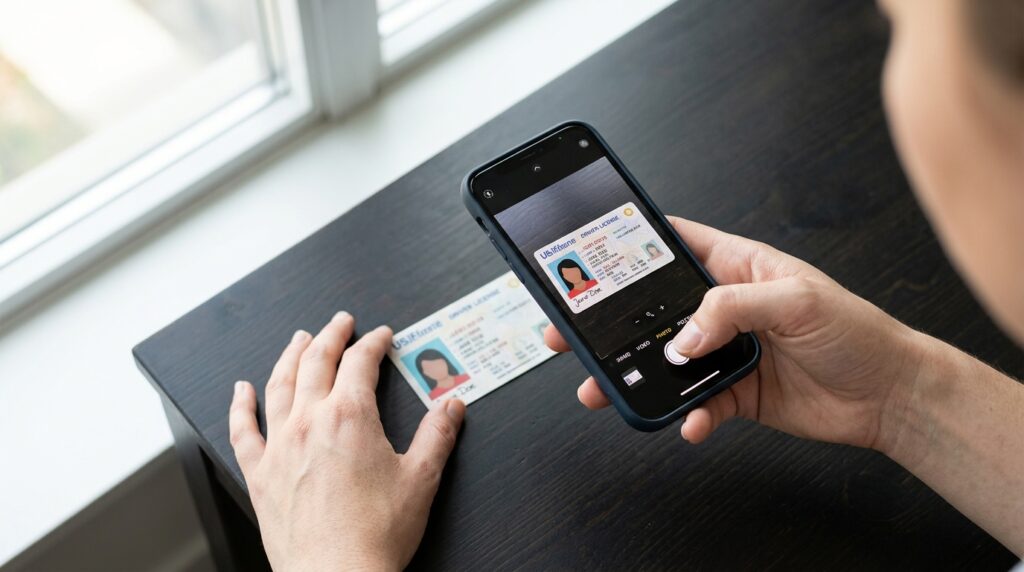
- Go to natural light: Take your ID to a window during the daytime. Natural, indirect sunlight eliminates the harsh glare caused by overhead light bulbs or phone flashes.
- Use a dark, flat background: Place your ID card or passport on a dark table or a black piece of paper. This gives the camera high contrast, making it easy for Stripe’s software to detect the exact edges of the card.
- Keep it flat: If you are using a passport, do not try to hold the pages down with your thumbs. If your thumb covers even half a millimeter of a number or letter at the bottom of the page (especially the Machine-Readable Zone—the lines of text with
<<<<), the scan will fail. Use a clear plastic clip or gently crease the spine so it stays flat on its own. - Capture all four corners: Ensure the entire outer border of the ID is visible inside the camera frame. Do not crop the image right at the edge of the text.
2. Audit Your Dashboard Information Line-by-Line
Before you upload the new photo, go to your Stripe Dashboard, click on Settings, and head to Business Details (under the Compliance section).
Open your physical ID card and place it next to your monitor. Look at your typed text versus the card.
- Spelling: Did you include your middle name on the dashboard but not on the ID? Or vice versa? Make them match perfectly.
- Date of Birth: Double-check that your month and day aren’t swapped. If you are outside the US, ensure the format didn’t get confused between MM/DD/YYYY and DD/MM/YYYY.
- Tax ID / SSN / EIN: If you are registering as a business, ensure the business name matches exactly what is printed on your IRS EIN confirmation letter (CP 575) or your local business registration. If your IRS letter says “My Company LLC,” do not type “My Company” into Stripe.
3. Take a Better Selfie (If Prompted)
Stripe often requires a live selfie to compare against your ID photo to ensure you aren’t using someone else’s stolen documents.
- Avoid the webcam: If Stripe gives you the option to use your phone via a QR code link, always use your phone. Laptop webcams generally have terrible focus, poor contrast, and low resolution, which causes biometric matching to fail.
- Remove accessories: Take off your glasses, hat, or headset. Stand against a plain, neutral-colored wall.
What to Do If Your Business Details Are Failing
Sometimes it isn’t your personal ID that fails, but your business entity verification. This happens frequently to international founders using tools like Stripe Atlas, or people who just registered a new LLC.
If Stripe says it cannot verify your business entity, it is usually a database timing issue.
When you register a new business with the state or get a new EIN from the IRS, it takes time for that data to propagate to the public databases that Stripe uses to verify companies. If you try to open a Stripe account 24 hours after getting your EIN, Stripe’s automated check will ping the IRS database, find nothing, and reject your account.
Real-World Fix: If your business is brand new, you need to bypass the automated database check. Upload your official document manually. For US businesses, this is your SS-4 form or CP 575 letter from the IRS. Ensure the letter is clean, unedited, and uploaded as a full PDF.
Common Mistakes to Avoid
When you are stressed about your account being paused, it is easy to make rash decisions that make the situation worse. Avoid these major missteps:
- Using a VPN or Proxy: If you are trying to verify your account while running a VPN, Stripe’s security systems will flag your IP address for suspicious location spoofing. Turn off all VPNs, proxies, or privacy browsers (like Brave or Tor) before initiating the verification flow.
- Uploading Screenshots: Never take a picture of your ID, send it to your computer, take a screenshot of that picture, and upload the screenshot. Digital photos contain metadata, and screenshots strip that data away. Stripe’s fraud detection system looks for this metadata to prove the photo was taken live. Upload the raw, unedited JPEG or PNG file straight from your phone camera.
- Using Digital IDs or Scans: Stripe generally does not accept photocopies, printouts, or digital versions of IDs displayed on another phone screen. It must be the physical plastic card or paper passport.
When to Give Up on the Bot and Contact Support
If you have tried twice with perfect lighting, confirmed all your text matches character-for-character, and you still get an instant automated rejection, the system has likely placed a temporary lock on your account.
At this point, trying a third or fourth time through the automated portal will just waste your time and risk a permanent ban. You need to trigger a manual human review.
Here is the best way to get a human to look at your case quickly:
- Go to the Stripe Support page while logged in.
- Do not just click the generic help articles. Look for the live chat or phone callback option (Stripe offers 24/7 support for active accounts).
- When you connect with an agent, use clear, non-aggressive language. Say something like: “My account verification is failing automatically due to an automated system error. I have my official government-issued ID and IRS paperwork ready. Can you please escalate this to your compliance team for a manual review?”
- The frontline chat agent usually cannot approve your account themselves, but they can create an internal ticket that bypasses the bot. They will send you a secure upload link where a human compliance officer will look at your documents and manually flip the switch to “Verified.”
The Bottom Line
Getting an identity verification error on Stripe is incredibly frustrating, but it is just a hoop you have to jump through. Stripe processes billions of dollars, so their security algorithms are dialed up to maximum sensitivity.
Take your time, get into a well-lit room, match your text perfectly, and use your phone instead of your webcam. Most of the time, fixing those simple visual or text mismatches will get your dashboard back to green and your payouts flowing again within a few hours.