
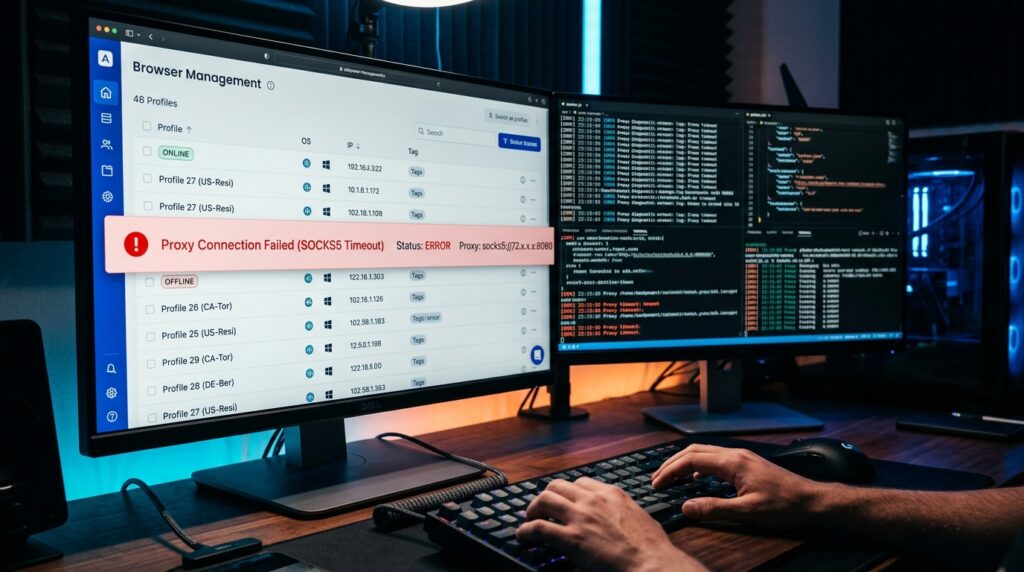
Picture this: You are right in the middle of warming up a fresh Facebook Ads account, or maybe you are executing an automated scraping script that has been running perfectly for the last twenty minutes. You take a sip of coffee, glance at your screen, and boom—the tab freezes. You check your anti-detect browser dashboard, and there it is: a blinking red dot or a “Proxy Connection Failed” error.
The profile drops connection, your fingerprint leaks, the target platform spots the sudden shift in your digital footprint, and just like that, your account is flagged or permanently banned.
I used to manage a setup of over fifty unique profiles across AdsPower and Dolphin{anty} for YouTube automation and high-CPC ad management. At one point, it felt like I was playing a never-ending game of whack-a-mole. Every single morning, at least five to ten profiles would randomly disconnect from their static residential proxies. I wasted countless hours blaming the browser software, yelling at proxy support chats, and losing valuable accounts.
But after months of debugging, tearing through network logs, and testing different infrastructure combinations, I realized something critical: Anti-detect browsers rarely drop proxies on their own. The issue almost always lies in how the proxy protocol, the session rotation settings, and your local network architecture are talking to each other.
If you are tired of watching your profiles constantly drop offline, here is the real-world, no-nonsense blueprint to stabilize your setup permanently.
The Hidden Culprits Behind Proxy Drops
Before tweaking your settings, you need to understand why the bridge between your anti-detect browser and your proxy is snapping. In my experience, ninety percent of all repeated disconnections boil down to three main structural issues:
1. The Protocol Bottleneck (HTTP vs. SOCKS5)
Many users default to the standard HTTP protocol when pasting their proxy credentials into multi-login tools because it’s simple. However, HTTP is structurally terrible for maintaining long, stable, interactive browser sessions. It is designed for quick, stateless requests. SOCKS5, on the other hand, establishes a dedicated, continuous TCP/UDP connection, making it vastly superior for anti-detect environments.
2. Aggressive IP Rotation & Short Session Life
If you are using residential proxies, you are essentially renting someone’s home internet connection. If that person turns off their router, or if your proxy provider enforces a strict 10-to-30-minute rotation pool limit, your connection will drop out without warning.
3. Local Hardware and DNS Timeouts
Running ten, twenty, or thirty active browser profiles simultaneously puts immense strain on your local machine’s RAM and network interface. When your router or PC firewall gets overwhelmed by hundreds of simultaneous open network threads, it starts silently dropping data packets. The browser sees this micro-delay as a dead server and severs the proxy link.
Step-by-Step Guide to Lock In a Stable Proxy Connection
Here is the exact optimization workflow I implemented to reduce my network drop rate to practically zero.
Step 1: Force SOCKS5 and Validate Ports
The simplest change that yields the biggest stability jump is switching your proxy configurations from HTTP to SOCKS5.
- Open your proxy provider’s dashboard and generate your credential list specifically using the SOCKS5 protocol endpoints.
- When adding the proxy to tools like AdsPower, GoLogin, or Multilogin, ensure the dropdown menu is explicitly set to SOCKS5.
- Double-check your port numbers. SOCKS5 often uses completely different port numbers than HTTP streams from the same provider. Mixing these up causes immediate “Connection Refused” loops.
Step 2: Use Sticky Sessions Over Rotating Pools
If you are using residential bandwidth for tasks that require logging into accounts (like managing social profiles or eCommerce stores), never use rotating proxy endpoints. * Ensure your proxy configuration is set to “Sticky Sessions” rather than “Rotating.”
- Set the session expiration limit to the absolute maximum allowed by your provider (ideally 1 hour to 2 hours, or switch entirely to dedicated, static ISP/Residential proxies).
- If your workflow allows it, static ISP proxies (residential IPs hosted in data centers) are the absolute gold standard for stability because they never physically go offline when a homeowner shuts off their PC.
Step 3: Configure Local Firewall and Antivirus Exclusions
Your local Windows Defender or third-party antivirus treats the unique network routing mechanisms of anti-detect browsers with massive suspicion. Every time an anti-detect kernel tries to spoof a WebRTC leak or route UDP data through a proxy port, your firewall might pause the packet to inspect it.
- Go to your system’s Firewall & Network Protection settings.
- Click “Allow an app through firewall.”
- Manually browse and add the main execution file (
.exe) of your anti-detect browser to the allowed list for both Private and Public networks.
Step 4: Optimize Browser Cache and Local Disk Space
This is a lesson I learned the hard way. Anti-detect profiles save massive amounts of local cache, cookies, and local storage data to mimic real user histories. If your local C: drive is running low on space, the browser will fail to write new session data. When the cache writing fails, the browser engine frequently freezes, causing the active proxy stream to time out.
- Regularly clear unnecessary profile caches directly from your browser’s cloud management dashboard.
- Keep at least 15–20 GB of free space on your local SSD to allow the virtual profiles to read and write temporary data smoothly.
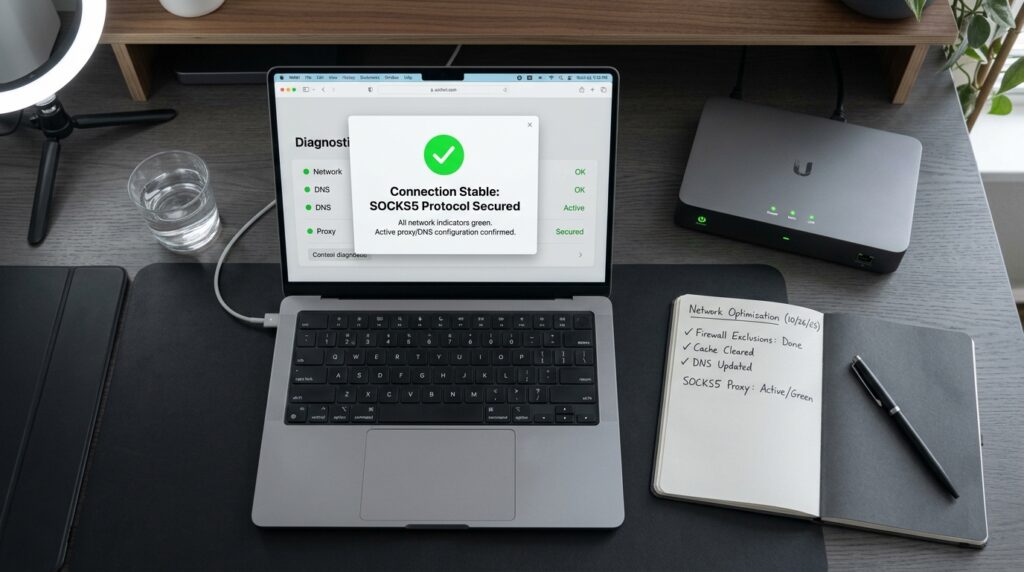
Real-World Scenarios: How to Read the Errors
When an anti-detect profile fails to launch or drops mid-session, the error code tells you exactly who to blame. Stop guessing and look for these telltale signs:
Scenario A: “Connection Timed Out” or “Proxy Failure” on Startup
- What it means: The anti-detect browser sent out a ping to the proxy server, but received absolutely no response within the default 10-second window.
- The Fix: Ninety percent of the time, this means your proxy has expired, your local internet connection dropped for a split second, or your local device is running a global VPN that is conflicting with the browser’s custom proxy routing. Turn off all system-wide VPNs and re-test.
Scenario B: The Profile Opens but Pages Load to an “ERR_CONNECTION_RESET” Screen
- What it means: The browser successfully linked to your proxy provider’s gateway server, but the gateway server failed to route your traffic out to the target website.
- The Fix: The specific IP assigned to your session has been burned, blacklisted, or blocked by the target platform’s anti-bot system (like Cloudflare or Akamai). Go to your proxy panel, manually force an IP rotation or change the location state/city, and try again.
Critical Mistakes to Avoid
When your setup starts acting up, avoid these common counter-productive fixes:
- Do Not Stack a VPN on Top of an Anti-Detect Proxy: Running a system-wide VPN on your main computer while simultaneously assigning individual residential proxies inside your browser profiles creates a total routing disaster. It increases latency exponentially, leading to constant connection drops and broken fingerprints.
- Do Not Use Free or Cheap Public Proxy Lists: If you are scraping or managing digital assets using free proxy lists scraped from public forums, expect them to disconnect every two minutes. These IPs are heavily overloaded, abused, and systematically blocked by major servers. Investing in high-quality, private bandwidth is non-negotiable.
- Do Not Ignore Browser Updates: Anti-detect browsers constantly update their core browser engines (Chromium or Firefox forks) to keep up with patch fixes and network protocol changes. Running an outdated browser version with a modern SOCKS5 proxy protocol often results in sudden session crashes.
Final Thoughts
A flawless multi-accounting or automation setup isn’t built overnight. It requires your local network environment, your browser configurations, and your proxy provider to work in perfect harmony.
If you’re still seeing frequent drops after switching to SOCKS5 and clearing your firewall, try downloading a secondary anti-detect browser tool and running the exact same proxy credentials through it. If it works perfectly there, you know your primary browser profile has a corrupted cache file. If it drops there too, it’s time to change your proxy provider completely.
Keep your pipelines clean, isolate your profiles carefully, and protect your digital infrastructure!