
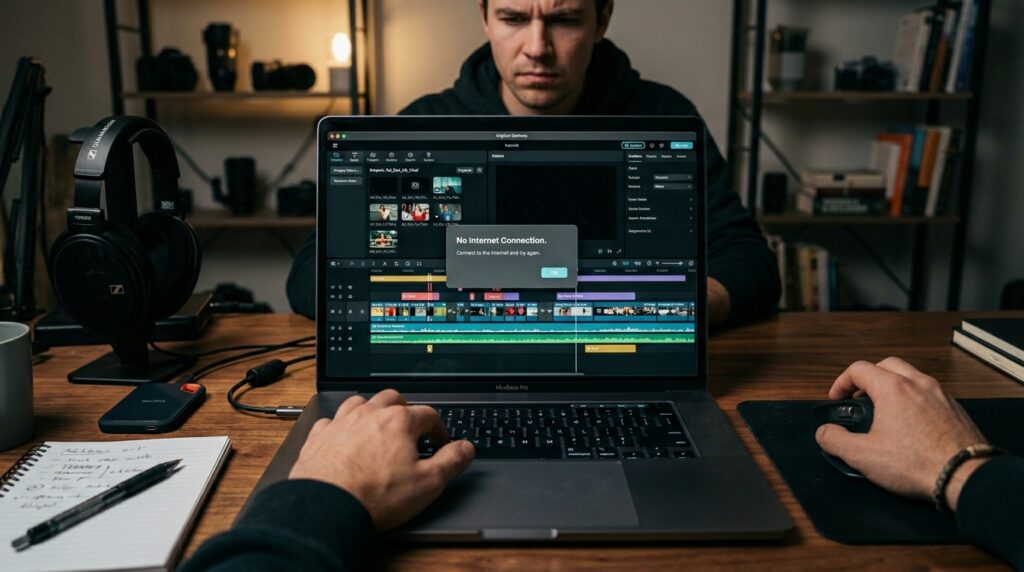
You are right in the zone, cutting together a video, trying to pull up a fresh trending transition or an AI effect, and suddenly the preview window blanks out. A massive, annoying warning pops up right in the middle of your timeline: “No Internet Connection. Connect to the internet and try again.”
You check your taskbar—your Wi-Fi signal is at full bars. You open a browser tab, and websites load instantly. Yet CapCut stubbornly insists you are stranded in the middle of an offline desert, refusing to load any stickers, filters, text templates, or cloud assets.
If you edit video for a living or run content channels, this scenario can cause a minor panic attack. I hit this exact wall last week while finishing up a tight video project. CapCut Desktop flat out refused to pull down an audio effect I needed to sync a cut.
Because CapCut relies intensely on cloud-hosted content delivery networks (CDNs) to keep its local installation file sizes small, any minor network routing hiccup, regional restriction, or firewall block completely cripples the software.
Over the past couple of years, I’ve broken down why CapCut chokes on its own connection and mapped out the exact, real-world solutions to bypass this glitch on both Desktop and Mobile. Let’s get your timeline moving again.
Why is CapCut Saying There is No Internet When You Are Online?
When CapCut throws a connection error despite your active internet, it isn’t an issue with your actual bandwidth. The software is trying to ping its data servers, and the handshake is being actively rejected or dropped.
In my editing workflows, I’ve found that this breakdown usually comes down to three main culprits:
- The Regional Restriction Gate: Depending on where you are logging in from, local regulations or platform changes restrict direct communication with CapCut’s central data hubs.
- Windows Firewall Over-Protection: Following major software updates, Windows Defender or your local antivirus will occasionally classify CapCut’s heavy cloud-sync requests as unauthorized background traffic and shut down its ports.
- Corrupted Local Cache Directories: Old, stale temporary files inside CapCut’s app folders can cause the sync engine to lock up, displaying a generic connection failure instead of processing new assets.
Step-by-Step Fixes for CapCut’s Connection Errors
Don’t resort to completely deleting your projects out of frustration. Work through these practical, tested fixes in order to restore CapCut’s server access.
1. The 30-Second Network Toggle (Rule Out the ISP)
Before tweaking deep app settings, you need to verify if your specific internet service provider (ISP) is throttling CapCut’s data packets.
- On Mobile (iOS/Android): Completely slide CapCut away from your active app switcher to force-close it. Toggle your phone into Airplane Mode for 10 seconds, turn it off, switch off your local Wi-Fi, and open CapCut using strictly your Cellular Data (4G/5G).
- On PC/Mac: Disconnect your computer from your home or office router and enable your smartphone’s Mobile Data Hotspot. Connect your computer to that hotspot and relaunch CapCut.
If your effects and templates suddenly load over cellular data, your primary Wi-Fi network’s DNS or ISP routing is actively blocking CapCut’s server infrastructure.
2. Unblock CapCut Through Windows Firewall (Desktop Only)
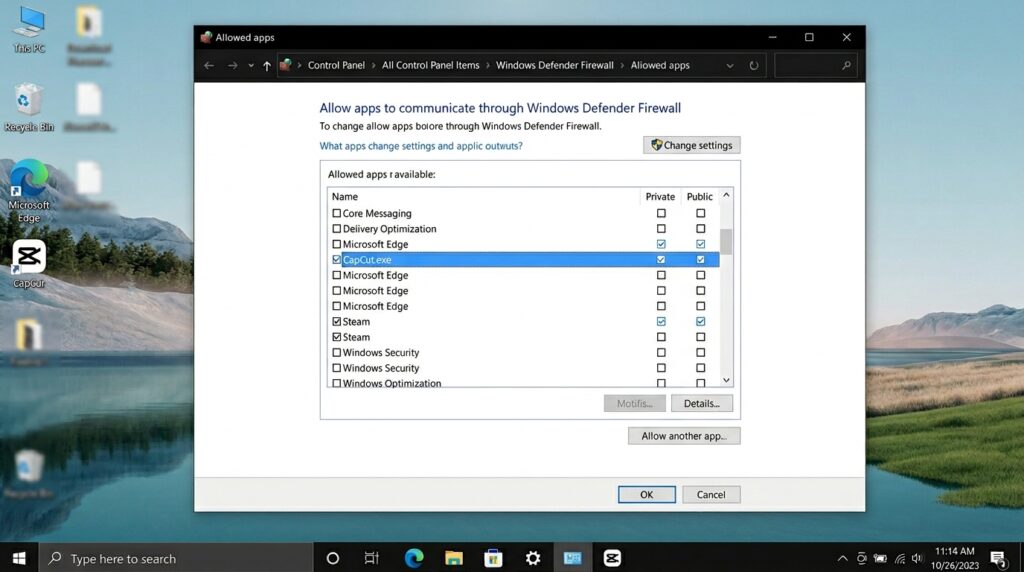
If you are editing on a Windows PC and your browser works perfectly but CapCut is completely dark, Windows Firewall is likely acting like an over-aggressive gatekeeper. This happens all the time after a clean CapCut update.
Here is how to force Windows to allow the app through:
- Tap the Windows Key on your keyboard, type Firewall & network protection, and hit enter.
- Look down the menu and click Allow an app through firewall.
- Click the Change settings button at the top right (you might need admin permissions for this).
- Scroll down the list until you find CapCut.exe.
- Ensure both the Private and Public checkboxes next to CapCut are completely checked.
- Click OK, restart your PC, and open CapCut.
Note: If CapCut isn't listed there at all, click "Allow another app...", navigate to your local AppData folder where CapCut is installed, and manually add the main executable file.
3. Clear CapCut’s Internal App Cache (The Clean Slate)
Just like browsers, CapCut accumulates huge piles of temporary thumbnail files, pre-rendered asset packets, and expired login tokens. When these local files become corrupted, they block the app from pinging the live server for new assets.
- On Mobile: Open CapCut, go to the main home screen, tap the Hexagonal Settings Gear in the top right corner, find Clear Cache, and hit confirm.
- On PC/Mac (The AppData Method): Close CapCut entirely. Press Windows Key + R to open the Run box. Type
%appdata%and hit enter. In the window that pops up, look for the CapCut folder, open it, locate the folder labeled Cache or Local Cache, and delete its contents completely.
Important Safety Note: Do NOT click “Clear App Data” inside your phone’s system settings, or delete CapCut’s root project folders on your PC. Doing that will permanently wipe out your un-saved local draft timelines. Only target the dedicated “Cache” directory.
4. Adjust Your DNS to Google’s Public Servers
If your local internet provider has outdated or slow domain name routing tables, CapCut’s cloud requests will simply time out before they ever reach the download servers. Shifting over to a clean, global public DNS often snaps the connection right back into place.
On Windows:
- Open your control panel and head to Network and Sharing Center > Change adapter settings.
- Right-click your active internet connection (Wi-Fi or Ethernet) and select Properties.
- Double-click on Internet Protocol Version 4 (TCP/IPv4).
- Select Use the following DNS server addresses and type in Google’s universal, high-speed addresses:
- Preferred DNS server:
8.8.8.8 - Alternate DNS server:
8.8.4.4
- Preferred DNS server:
- Click OK, open a command prompt, type
ipconfig /flushdns, hit enter, and try running CapCut again.
5. Check Server Status and Handle Regional Blocks
If you have executed every step perfectly and the app still behaves like it is completely offline, CapCut’s global content servers might simply be down for scheduled maintenance, or your current geographic territory might face strict regional platform limits.
If you suspect a regional blockade or a severe server outage is stopping your workspace from loading, you can use a high-quality personal VPN to test the connection path.
- Close CapCut completely down.
- Open your VPN client and change your virtual node location to a region with unrestricted platform access (such as the United States, Singapore, or the UAE).
- Once the VPN tunnel confirms it is fully connected, reopen CapCut.
- If your templates and effects suddenly populate instantly, your default IP territory was being filtered out by CapCut’s network firewall.
Critical Mistakes to Watch Out For
When you are stressed out trying to clear a connection loop, avoid these common counter-productive pitfalls:
- Spamming the Export Button: If your assets aren’t loading due to a network error, do not try to repeatedly force an export to your local hard drive. If CapCut tries to fetch cloud-dependent filters or fonts during the render process and fails, the export script will crash, sometimes creating a corrupted video file that skips entire frames.
- Blindly Downloading “Mod APKs” or Cracks: If you are struggling with internet errors on mobile, stay far away from third-party websites offering pre-cracked or modified CapCut installation files that promise “unlimited server access.” These files are highly untrusted, frequently contain malware, and will often get your actual CapCut account permanently banned from cloud syncing.
Final Thoughts
Staring at an empty CapCut timeline because of an artificial network error is incredibly frustrating, especially when you know your home internet is performing flawlessly.
By systematically running a network isolation test via a cellular hotspot, clearing out stale local cache directories, or ensuring Windows Firewall isn’t choking your desktop ports, you can easily remove the artificial blockades. Keep your installation files updated through official storefront channels, keep your cache lean, and you can keep your editing flow moving without interruptions.