

We have all been there. You type out a brilliant, carefully detailed prompt into ChatGPT, hit enter, and wait for that instant stream of text. Instead, you are treated to a painfully sluggish trickle. The letters crawl out one by one like a dial-up connection, or worse, the little blinking cursor just sits there “thinking” for a solid fifteen seconds before typing a single word.
When you are in the zone—whether coding a layout, drafting an article, or scripting a video—that lag completely destroys your creative momentum.
I hit this exact wall a few weeks ago while using ChatGPT to map out a massive documentation project. The interface became so incredibly sluggish that my browser tab actually froze. At first, I assumed OpenAI’s servers were just melting under global load. But after doing some digging and tweaking my setup, I realized that a huge chunk of the latency was actually happening right on my own screen.
As these AI models grow more complex—processing massive multi-step logic, file uploads, and advanced reasoning—the strain on both backend infrastructure and local browsers has sky-rocketed. If your ChatGPT is running like it’s stuck in molasses, you don’t have to just sit there and accept it.
Here are 7 practical, hands-on fixes that will instantly inject some speed back into your AI workflow.
What is Making ChatGPT So Painfully Slow?
Before we look at the fixes, it helps to understand why the lag happens. When ChatGPT bogs down, it usually boils down to three primary issues:
- The Overloaded DOM Tree: ChatGPT keeps every single line of text from your current session loaded in your browser’s active memory. If your chat history is miles long, your browser simply chokes trying to render it.
- Server-Side Queueing: During peak hours (typically 9 AM to 5 PM EST, when the professional world logs on), millions of heavy reasoning queries queue up, forcing OpenAI’s data centers to throttle output speeds.
- Script Interference: Security layers, ad-blockers, and extensions inject code into your page that can conflict with the live streaming connection ChatGPT relies on.
7 Fixes to Speed Up ChatGPT Instantly
Work through these steps to pinpoint exactly where your bottleneck lives and clear it.
1. Ditch the Long Chat History (Start a New Thread)
This is the absolute number one cause of local interface lag. Because ChatGPT needs to remember the context of your entire conversation, it holds every single previous message in the active Document Object Model (DOM) of your browser tab.
If you have a single chat thread that you’ve been using for days or weeks to plan a project, your browser is burning massive amounts of RAM just keeping that thread open.
- Look at your left sidebar, click “New Chat”, and paste your current prompt there.
- You will likely notice an immediate, drastic jump in text generation speed.
- The Lesson: Keep your chat threads modular. Dedicate a fresh thread to every specific task rather than letting one conversation spiral into hundreds of messages.
2. Isolate Rogue Extensions via Incognito Mode
Your browser extensions—especially heavy ad-blockers, grammar checkers, and translation tools—are designed to read and manipulate text on the pages you visit. Because ChatGPT streams its responses dynamically using real-time WebSockets, these extensions constantly scan the streaming text in the background. This can cause severe input delay and rendering lag.
To test this without breaking your setup:
- Open a new Incognito / Private Window (which disables extensions by default).
- Log into ChatGPT and run a quick test prompt.
- If the text streams smoothly, one of your extensions is actively bottlenecking the app. You can go back to your main window and turn them off one by one to find the culprit—look closely at grammar extensions or third-party AI “prompt helpers.”
3. Check for Server-Side “Degraded Performance”
Before you spend twenty minutes resetting your router or clearing out saved data, check if the issue is completely out of your hands. OpenAI’s infrastructure occasionally experiences high latency or partial outages, especially when rolling out new feature frameworks.
Open a separate tab and visit status.openai.com or a crowd-sourced platform like Downdetector. If the status page shows “degraded performance” or a spike in user reports, the backend servers are simply bogged down. In this scenario, no local troubleshooting will help—your best bet is to take a quick break and wait for their engineering team to rebalance the server loads.
4. Switch Your Model to a Lighter Version
If you are running the free tier or heavily using premier, reasoning-intensive models for basic tasks, you are naturally going to experience longer wait times. Heavy models take significantly longer to calculate weights and verify logical safety guardrails before outputting text.
If you don’t need deep analytical reasoning for your current task (like basic formatting, summarizing short text, or generating simple ideas), switch your model drop-down at the top of the chat to GPT-4o mini. Because the mini architecture requires drastically less computing power, it processes queues much faster and stream replies almost instantly.
5. Flush Your Local Site Cookies and Cache
Over time, ChatGPT frequently pushes updates to its web user interface. If your browser holds onto outdated cache files from a previous deployment version, those files can conflict with the live code, resulting in lagging text, freezing buttons, and overall sluggishness.
Instead of clearing your whole browser history, you can selectively wipe ChatGPT’s data:
- Click the small padlock icon on the far left of your browser’s URL address bar while on the ChatGPT site.
- Select Site settings or Cookies and site data.
- Choose Manage cookies and site data and hit the trash bin icon next to any entries for
chatgpt.comoropenai.com. - Refresh the page and log back in to establish a perfectly clean local environment.
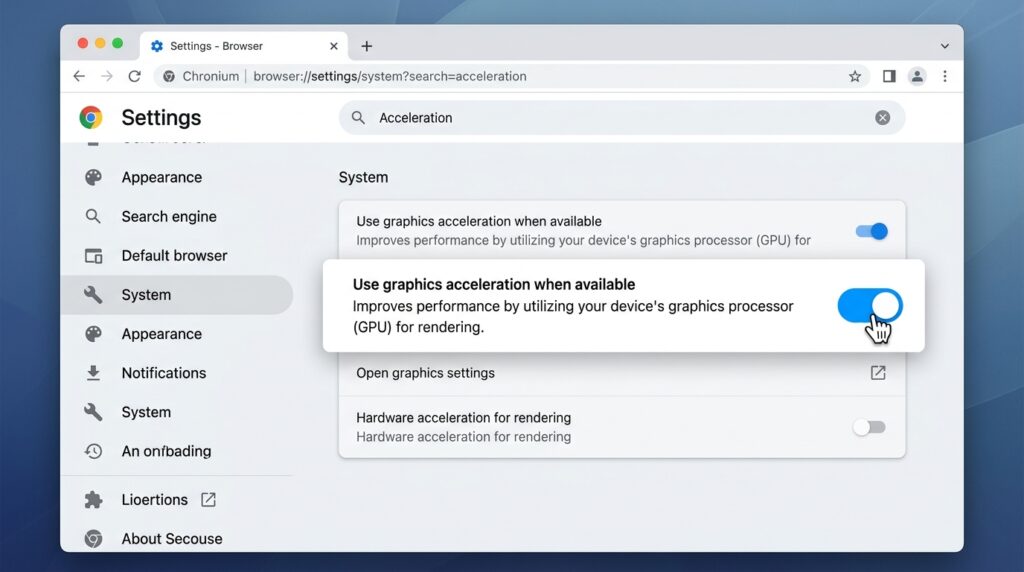
6. Turn On Hardware Acceleration
Because ChatGPT uses highly visual web elements and rapid rendering scripts to display streaming text animations, it relies heavily on your computer’s hardware capability. If your web browser isn’t configured to utilize your graphics card, your CPU can get overwhelmed during heavy multi-tasking.
To verify this in Google Chrome or Edge:
- Go to your browser Settings by clicking the three dots in the top right corner.
- Type “Hardware Acceleration” into the settings search bar.
- Ensure the toggle for “Use graphics acceleration when available” (or Hardware Acceleration) is switched ON.
- Relaunch the browser for the changes to take effect.
7. Test for Network and VPN Latency Issues
ChatGPT doesn’t require a massive amount of internet bandwidth to work, but it absolutely demands low latency. Because it uses a continuous, live WebSocket stream to pass text data back and forth, any minor packet loss or connection delay will cause the streaming text to stutter or pause entirely.
If you are running a personal VPN, a proxy network, or are connected to a highly congested public Wi-Fi network, your data packets are likely taking a long, winding path to OpenAI’s servers. Try disconnecting your VPN client completely or switching over to your smartphone’s cellular data hotspot for five minutes. If the text generation speed snaps back to normal, your native network path was the culprit.
Common Mistakes That Make the Lag Worse
When a tab starts lagging, avoid these instinctual but unhelpful reactions:
- Spamming the Stop/Regenerate Button: Clicking the stop button and hitting regenerate five times in a row puts additional strain on your browser tab’s active memory and can trigger automated anti-spam rate limits on your account.
- Keeping Dozens of AI Tabs Open: If you have multiple active tabs processing data at once, they compete for the same local browser thread resources, compounding the overall slowdown across your entire machine.
Final Thoughts
A slow AI tool can completely derail a productive workday, but in most cases, the fix is incredibly simple. By breaking up overly long chat threads, ensuring your extensions aren’t choking your scripts, and selecting the right model for the task at hand, you can easily bypass the traffic jams and get back to a lightning-fast workflow. Keep your browser workspace lean, keep your threads short, and let the tool do what it does best without the drag.