
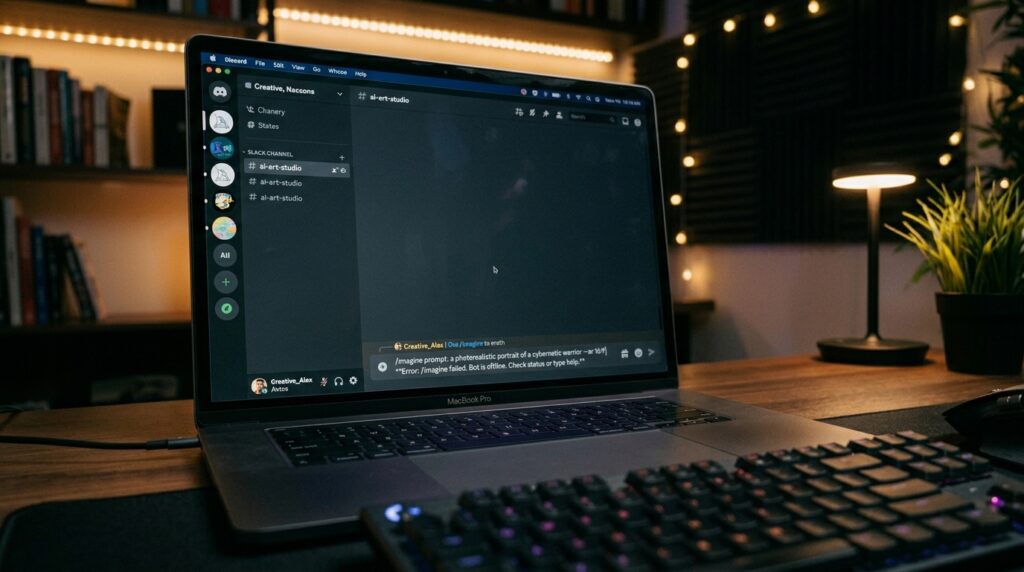
You are sitting at your desk, ready to roll out some stunning visual assets for your new project or faceless channel. You click on Discord, head into your private generation room, and type your trusty command: /imagine.
You hit space, expecting that familiar little box to pop up so you can type your prompt. Instead… nothing. The text stays as raw, unformatted code. You press enter anyway, and Discord coldly tells you it’s an invalid command, or the Midjourney bot completely ignores you like you don’t exist.
If you generate AI art consistently, this scenario is an absolute workflow killer. I ran into this exact headache last week while trying to render out some high-RPM cinematic landscapes. One minute the bot was running beautifully; the next, Discord’s slash command engine completely blanked on Midjourney.
Because Midjourney doesn’t use a standalone software application and lives almost entirely inside Discord’s ecosystem, it is vulnerable to complex integration glitches. When you type /imagine, /settings, or /blend, you aren’t just talking to a simple bot—you are triggering a multi-layered handshake between Discord’s global application interface (API), Cloudflare’s security walls, and Midjourney’s processing grid.
If one piece of that chain drops its connection, the commands vanish. Through a lot of trial, error, and deep troubleshooting across personal and shared servers, I’ve mapped out the exact layout of why Midjourney commands break and the actual step-by-step fixes to snap them back into place.
Why Have Your Midjourney Commands Stopped Working?
When Discord stops recognizing your Midjourney slash commands, it rarely means your account is banned. Instead, the connection has choked on one of these specific hidden bottlenecks:
- The Legacy Input Glitch: An active Discord accessibility setting can force the text box into an old, legacy layout mode that refuses to process modern slash app commands.
- Missing Application Scopes: If you invite the Midjourney Bot to a private server, a minor permissions mismatch can strip the bot of its ability to inject its official
/commands into your chat box. - The Overloaded Server Limit: Discord caps the number of active bot integrations a single server can visually display at once. If your home server is cluttered with music bots, utility tools, and trackers, Midjourney gets pushed out of the active rendering queue.
- Stale Local Discord Cache: Old, corrupted software update fragments inside your desktop client or mobile phone are actively blocking the live API handshake.
Step-by-Step Fixes That Actually Work
Don’t panic and go cancel your subscription just yet. Work your way through these solutions from the quickest fixes to deeper application adjustments.
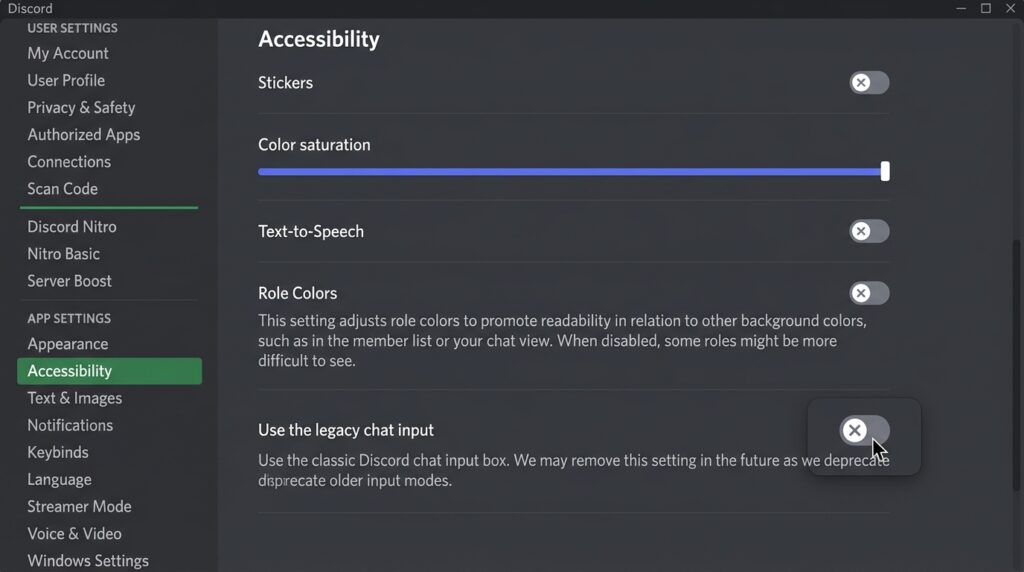
1. Toggle Off the “Legacy Chat Input” Setting
This is the hidden culprit behind roughly 70% of sudden slash command failures, especially after a major Discord client update. If Discord forces your interface into a legacy text rendering engine, the modern application integration framework fails to load.
Here is how to disable it manually:
- Open your Discord client and click the User Settings Gear Icon in the bottom-left corner (next to your profile name).
- Look down the left-hand sidebar menu and click on the Accessibility tab.
- Scroll all the way down to the bottom of the accessibility options until you locate the toggle for “Use the legacy chat input”.
- Ensure this toggle is switched completely OFF.
- Restart your Discord application and try typing
/imagineagain.
Tip: If you're on a Windows machine, clicking Ctrl + R inside the Discord app forces a quick, clean reload of the entire user interface script without needing to close the program through your task manager.
2. Force an Application Refresh (Clear the Cache Data)
If you use the official Discord desktop app or mobile app exclusively, the local cache directories accumulate a massive pile of temporary data. When these session files get corrupted, the app fails to populate dynamic dropdown menus—including Midjourney’s prompt box.
- On Google Chrome / Web Browser: Click the small padlock icon directly to the left of the URL address bar while on Discord. Select Site settings or Cookies and site data. Click Manage cookies and site data and hit the trash can icon next to anything mentioning
discord.com. Refresh the page and log back in. - On the Windows Desktop App: Completely close Discord down (right-click the icon in your system tray and select Quit). Press your Windows Key + R to call up the Run prompt. Type in
%appdata%/discordand hit Enter. Locate the folders labeled Cache, Code Cache, and GPUCache, and delete their contents completely. Relaunch the application.
3. Re-Authorize the Bot’s Scopes (The Private Server Fix)
If you are generating images inside your own private server and the commands have gone missing, the bot likely lost its official application permission token during a platform update. You need to invite it back with the correct command scopes enabled.
Don’t worry—you don’t need to kick the bot first. You can easily overwrite its current state:
- Go to the official Midjourney Discord server.
- Look at the member list on the far right panel and find the official, verified Midjourney Bot.
- Click on the bot’s profile icon and click the blue “Add App” or “Add to Server” button.
- Select your private server from the dropdown list.
- Before clicking Authorize, look closely at the permission screens. Ensure the box for
applications.commands(or “Use Slash Commands”) is explicitly checked. - Click Authorize and complete the quick anti-bot puzzle. This forces a clean registration of Midjourney’s entire command menu back into your server’s backend.
4. Drop into Midjourney’s Direct Messages (DMs)
If you are working on a tight timeline and your home server’s layout engine is completely stuck, you can completely bypass server-level restrictions by initiating a direct, one-on-one session with the bot itself.
- Go to your server or the official Midjourney server, click on the Midjourney Bot name in the user list, and type a simple message like “hello” in the private message box.
- This opens a clean Direct Message (DM) channel between you and the generator.
- Try typing
/imagineinside this private room. Because a DM channel does not have to balance complex server rules, custom roles, or channel overrides, the slash commands will almost always populate instantly here.
5. Check for “Failed to Process Your Command (C)” Status
If your slash commands appear fine in the text box, but every time you hit enter, the bot flashes a cold, orange warning stating: “Failed to process your command,” you aren’t dealing with a browser bug. The error code means the command successfully reached OpenAI or Midjourney’s processing grids, but the rendering pipeline choked on the execution math.
Before rearranging your local setup, check the network status:
- Open a new tab and navigate to
status.midjourney.com. - Look at the indicators for the “Discord Bot Interface” and “Image Generation Clusters.”
- If the status grid shows “Degraded Performance” or an ongoing outage, their image processing queues are heavily backed up. Take a break, back away from your workstation for 20 minutes, and let their dev team clear the queue lines.
Common Mistakes to Steer Clear Of
When your creative pipeline stalls, it’s easy to make moves that prolong the issue. Keep these parameters in mind:
- Spamming Plain Text Prompts: Typing “imagine a cinematic dark forest” into the chat bar without selecting the official, structured
/imaginebutton pop-up is completely useless. The bot ignores basic text inputs entirely to prevent chat spamming. - Overcrowding an Integration Server: If your dedicated image server contains more than 50 active bot integrations, Discord’s layout engine will automatically hide new command sets. Keep your creation servers lean and dedicated strictly to visual workflows.
Final Thoughts
Losing access to your Midjourney tools because of a silent communication bug between Discord and the bot is incredibly annoying, especially when your creative momentum is high.
By systematically turning off legacy chat settings, clearing stale local application cache directories, or re-running the bot’s command scopes, you can easily restore your gateway. Keep your application updated through its native platforms, keep your server integrations organized, and you’ll be able to keep generating high-quality visual content without any frustrating interruptions.