

You open up CapCut, ready to slap a trending video format or a viral audio sync layout together, and you hit a wall. You look down at the bottom of your phone screen, or glance over at your desktop dashboard, and realize something critical is completely missing: The Templates tab has vanished into thin air. Or maybe the tab is there, but when you click it, the page sits on a perpetual white screen, stubbornly refusing to load a single trending layout.
If your strategy relies on jumping on social media trends early, this bug is a massive momentum killer. I dealt with this exact headache recently while trying to assemble a quick edit for an account. One day the templates were right there; the next, the app behaved like the feature had never existed in the first place.
Because CapCut distributes its massive library of user-generated templates dynamically based on your specific location, device type, and login session, it takes very little to throw the interface off balance. A minor update glitch or a misaligned IP address can cause the app to hide the entire template menu as a defense mechanism.
The good news? You don’t have to manually recreate these complex video layouts from scratch. After messing around with both mobile settings and desktop files, I’ve mapped out the exact real-world fixes that will bring your missing templates right back to your workspace.
Why Do CapCut Templates Keep Disappearing?
When the template ecosystem breaks down, it almost always boils down to one of these four underlying technical problems:
- The Microsoft Store App Limitation: If you are on a Windows PC and downloaded CapCut directly from the built-in Microsoft Store, you are running a streamlined version that often omits the open template search ecosystem entirely.
- Geographic Identity Blurs: CapCut checks your public IP address against your profile’s regional settings. If there is a mismatch or if you are in a location with strict data-hosting laws, the template library gets hidden behind a region lock.
- Corrupted UI Local Memory: The temporary files your app uses to build the visual interface have become jumbled, causing the layout engine to leave out navigation tabs.
- Account Sync Outages: Your active login session has expired on CapCut’s backend servers, even though your local device still looks like it is signed in.
Step-by-Step Fixes to Restore CapCut Templates
Work your way down this list systematically. These methods cover both mobile app setups and desktop workstations.
1. The TikTok Sidestep (The Fastest Mobile Force-Fix)
If you are on an iPhone or an Android device and your Template button has gone missing, you can trick CapCut into restoring the menu by importing a template directly from a third-party gateway like TikTok.
- Close CapCut completely by sliding it out of your active app switcher.
- Open the TikTok app and go to the search bar.
- Type in “CapCut Templates” and pick any video from the search results that features a template link.
- Tap the distinct white and blue button above the video caption that says “CapCut · Try this template”, then select “Use Template in CapCut”.
- Your device will force-launch CapCut and pull the template directly into your editor view.
Once the clip loads, tap the “X” icon in the top left to exit the editing timeline and go back to your app’s main dashboard. This action forces CapCut to register a clean template hook, which almost always forces the missing “Templates” button to pop back into your primary menu navigation bar.
2. The Language Flip (Forces a Server Re-Sync)
If the app layout is bugged due to a stale local configuration file, you can trigger a deep layout refresh by switching the application’s native language module. This forces CapCut to redownload its core interface structures directly from its central data servers.
- On PC / Mac Desktop: Open CapCut, click the Settings Gear icon in the top right corner, and open the settings sub-menu. Go over to the Language tab. Switch it from English to an alternate option (like Spanish or French) and click save. Let the application restart itself completely. Once it opens back up, head straight back to settings, flip it back to English, and save again.
- On Mobile: Head to the main home screen, open your top-right Settings Gear, find the App Language menu, flip it to an alternate language, save, force-close the app, and then switch it back to your preferred language.
This simple flip cleans up erratic user-profile states and forces the application to re-interrogate the main template servers for your region.
3. Clear Out Corrupted App Data Cache
Piles of old asset data, pre-cached stickers, and expired login metadata can cause the background code that loads templates to time out. Wiping this cache won’t touch your saved video projects or rough drafts, but it does clean up the app’s internal gears.
- The Quick Mobile Method: Inside CapCut, tap the Settings Gear icon at the top right of the home dashboard, scroll down to find Clear Cache, and hit confirm.
- The Deep Windows PC Routine: Close CapCut entirely. Press your Windows Key + R to call up the Run prompt box. Type in
%localappdata%and press Enter. Inside the file folder that opens, double-click the CapCut folder, navigate into User Data, locate the folder titled Cache, and delete its contents entirely.
Once cleared, relaunch the app and give it 30 seconds to rebuild the visual menus over your internet connection.
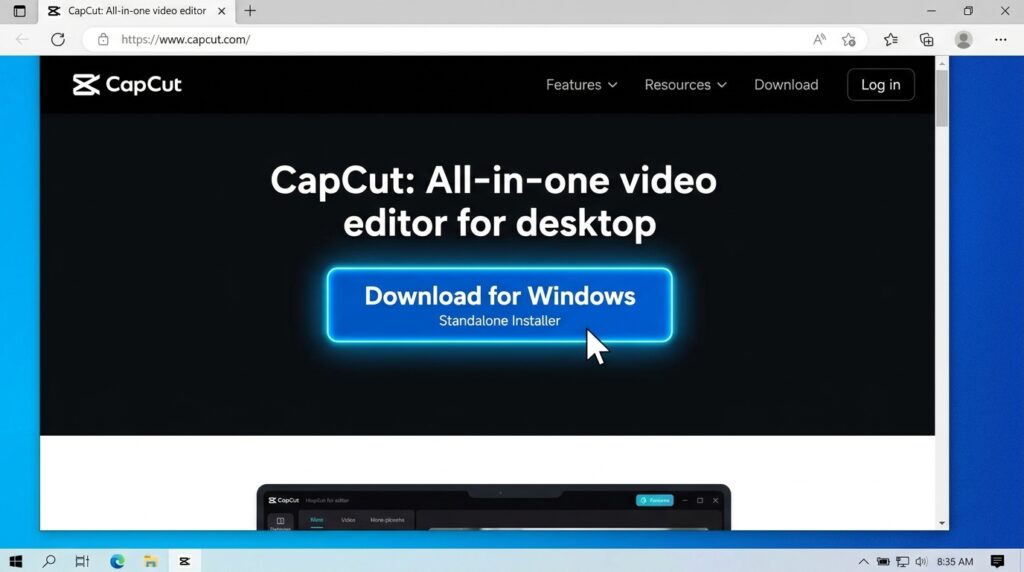
4. Switch from the Microsoft Store App to the Standalone Installer
If you are editing on a laptop or desktop and can’t find a template tab anywhere, look closely at where you originally downloaded the program. The version of CapCut hosted inside the default Microsoft Store app ecosystem frequently lacks the full community template search hub due to sandboxed app limitations.
To fix this permanent restriction:
- Back up any critical project files to your CapCut Cloud storage space.
- Open your computer’s settings panel, go to Apps > Installed Apps, find CapCut, and click Uninstall.
- Open your internet browser and navigate directly to the official website:
capcut.com. - Download the native standalone desktop installer directly from their website homepage and install it manually.
- Log into your account. The native standalone version comes equipped with the complete, unrestricted template dashboard right out of the box.
Real-Life Workaround: Shift to CapCut Web
Last winter, I had a project due for a client and my local desktop app refused to show any trend templates no matter how many times I cleared the cache files. I didn’t have time to mess with deep reinstalls, so I shifted my entire session over to CapCut Web.
If you are facing a tight deadline and your local app is being stubborn, simply open up a browser window, head over to capcut.com, and log into your dashboard. The browser web editor houses the entire live template catalog on its left-hand sidebar menu. You can apply templates, swap out your media files, and execute your final exports directly in the cloud without needing your local application to cooperate.
Common Mistakes to Steer Clear Of
Don’t let troubleshooting panic lead to these common workflow mistakes:
- Uninstalling the App Without Checking Your Drafts: On mobile devices, performing a blind uninstall of CapCut will permanently delete any local project files that haven’t been actively backed up to your CapCut Cloud space. Always verify your cloud sync states before deleting the application.
- Using Unverified Custom “Mod” Versions: If your templates are missing due to a regional restriction, do not search for modified or cracked CapCut application files on internet forums. These unofficial files are heavily targeted by bad actors looking to distribute malware and can lead to your official profile being blacklisted from CapCut’s ecosystem.
Final Thoughts
A missing template tab can break your content creation pipeline, but it is almost always an issue of communication between your local app version and CapCut’s backend servers.
By utilizing the TikTok redirection trick, executing a language-switch refresh, or running the official standalone desktop application, you can easily clear out these layout bugs. Keep your application updated through its native storefronts, clear your temporary data files regularly, and you’ll be able to keep utilizing these viral video structures without missing a beat.