
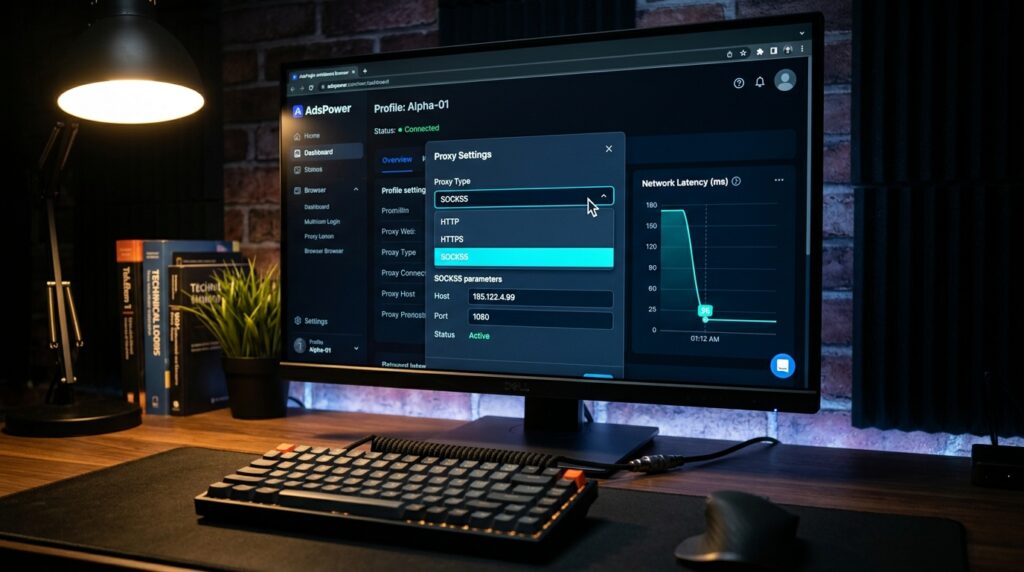
It was 2:00 AM on a Thursday, and I was staring at a loading spinner that just wouldn’t stop spinning.
I was in the middle of scaling a scraping project for a client’s e-commerce store, running a few automated multi-login browser profiles via AdsPower. I had just purchased a fresh pool of premium, geo-targeted US residential proxies. On paper, everything should have been lightning fast.
Instead, my scripts were timing out, images were failing to load, and my connection speeds felt like I was back on 90s dial-up. I was burning through my paid bandwidth gigabytes just waiting for pages to time out.
If you use residential proxies for web scraping, managing multiple social accounts, sneaker copping, or ad verification, you’ve almost certainly hit this exact wall. You pay a premium for residential IPs because they look like real home internet users, only to find out they can be agonizingly slow compared to cheap datacenter proxies.
Over the years, after countless hours of troubleshooting, tweaking network configurations, and yelling at support tickets, I’ve learned that residential proxy lag isn’t a mystery. It’s usually caused by a few specific, fixable bottlenecks.
Let’s dive into why your residential proxies are crawling and the exact steps you can take right now to fix the speed.
The Hard Truth About Residential Proxy Architecture
To fix the speed, you first have to understand what’s actually happening under the hood when you connect.
When you buy a datacenter proxy, you are connecting straight to a high-powered server sitting in a massive facility (like AWS or DigitalOcean) with a dedicated 10 Gbps fiber line. It’s built for raw speed.
A residential proxy is completely different. You are routing your internet traffic through a real person’s home Wi-Fi network or mobile device. That device might be a laptop in Ohio, a smartphone in Texas, or a smart TV in Berlin.
[Your Computer] ──► [Proxy Provider Gateway] ──► [Someone's Home Wi-Fi Router] ──► [Target Website]
Think about your own home internet. Sometimes your Wi-Fi drops a bar. Sometimes your provider throttles your speed. Sometimes your family members start streaming 4K video, slowing down the entire house.
When you use a residential proxy, you inherit the physical limitations, location, and network instability of whatever random person’s device you happen to be routing through at that exact second.
The Main Culprits Behind the Lag
Through trial and error, I’ve narrowed down slow proxy performance to five main culprits.
1. The Physical Distance (Latency)
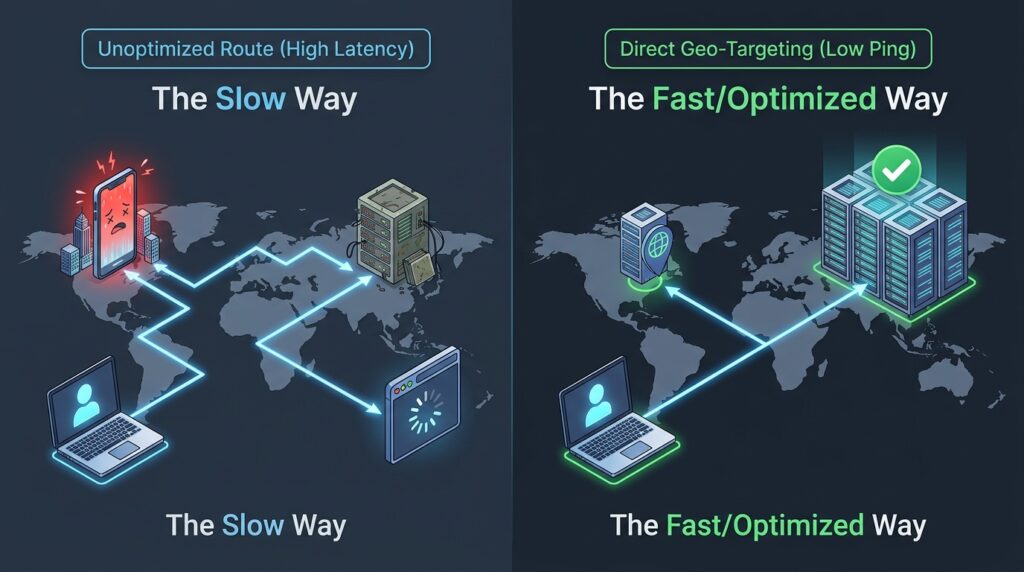
If you are sitting in the UK, using a proxy gateway located in France, routing through a residential peer’s phone in Los Angeles, to scrap a target website hosted on servers in New York, your data is literally traveling around the globe twice just to load one page. This physical distance creates massive latency (ping), which kills speed.
2. High-Utilization Backconnect Pools
Most modern providers use “backconnect” proxies. They give you a single address (e.g., us.proxyprovider.com:8000), and their backend servers automatically rotate the underlying residential IP for you. If that backend gateway server is overloaded with thousands of other users running heavy scraping threads at the same time, the gateway itself becomes a massive bottleneck.
3. The Peer Just Walked Away
Because residential IPs belong to real people, those people move around. If your proxy connection is routed through someone’s smartphone and they drive out of their home Wi-Fi range or turn off their device, your connection drops or stutters while the proxy provider tries to seamlessly migrate your session to a new peer.
4. Heavy Protocol Overhead
Are you connecting via HTTP, HTTPS, or SOCKS5? Many people default to basic HTTP setups without realizing that the protocol overhead, combined with the provider’s encryption layers, can add noticeable milliseconds to every single request.
Step-by-Step Fixes to Speed Up Your Proxies
You don’t just have to accept terrible speeds. Here is the exact troubleshooting checklist I go through whenever my connections start to crawl.
Step 1: Switch from Heavy Rotation to Sticky Sessions (Or Vice Versa)
Look at how your proxy endpoints are configured in your dashboard.
- If you are scraping or downloading data: Using a completely random IP on every single request (rotating endpoint) forces a new handshake every time, which adds massive latency. Switch to a sticky session (usually a 10-minute to 30-minute hold). Keeping the same IP for a short window eliminates the constant re-routing lag.
- If your sticky session is dying: If you are already on a sticky session and it suddenly slows to a crawl, the home user might have just started a heavy download. Force a session change by altering your port number or changing the session ID string in your proxy configuration to jump to a fresh, active peer.
Step 2: Match Your Target Site’s Server Location
Stop guessing with your geo-targeting. If you are targeting a specific website, find out where its servers are located. You can run a quick, free domain IP lookup on tools like ViewDNS.info or Whois to see where the site is hosted.
If the target website’s servers are in Ashburn, Virginia (a massive hub for AWS), configure your proxy settings to specifically target Virginia, USA, or at least the US East Coast. Matching the proxy location to the target server’s location eliminates thousands of miles of unnecessary data travel.
Step 3: Test SOCKS5 vs. HTTPS
If your proxy provider supports both, test them side-by-side.
The Quick Rule: SOCKS5 is generally faster for raw data streaming, automation tools, and heavy multi-threading because it handles traffic at a lower network layer without rewriting data headers.
If you are using tools like AdsPower, Multilogin, or custom Python scripts, swap your proxy configuration protocol from HTTP/HTTPS to SOCKS5 and check your page load times. You will often see an immediate 15% to 30% drop in latency.
Step 4: Run a Local Latency Benchmark
Don’t trust the speed test built into your automation tool. Test the raw connection yourself.
Open your terminal or command prompt and run a simple curl command or use a dedicated proxy testing tool like ProxyCheck or Fiddler to isolate the issue.
Bash
curl -x http://user:pass@proxy_ip:port -o /dev/null -s -w "Connect: %{time_connect} TTFB: %{time_starttransfer} Total: %{time_total}\n" https://www.google.com
Look closely at the Time to First Byte (TTFB). If the TTFB is incredibly high, the bottleneck is the proxy provider’s gateway server, meaning it’s time to complain to their support team or change your entry nodes.
Real-World Scenario: The Multi-Login Browser Trap
Let me give you a practical example of a mistake I made last year while managing international social accounts for a client.
I was using static residential proxies inside a multi-login browser profile. The profiles were crawling. It took 15 seconds just to load a basic profile feed. I blamed the proxy provider and even demanded a refund.
Before canceling, I checked my local setup. I realized I had my local VPN turned on on my main desktop machine while simultaneously running the residential proxies inside the isolated browser profiles.
My data was doing this:
[My PC] ──► [Local VPN Server] ──► [Proxy Provider Gateway] ──► [Residential Peer] ──► [Social Network]
The double encryption layer from the VPN combined with the proxy completely choked the bandwidth. The moment I turned off my local desktop VPN and let the multi-login profiles connect directly to the proxy gateways, the speed instantly doubled.
Common Mistakes That Are Killing Your Performance
Before you go buying more bandwidth, make sure you aren’t committing these common proxy sins:
- Mistake #1: Using Cheap, Shared Pools. If you bought a “budget” residential package where you share the exact same IP pool with thousands of other users who are aggressively blasting sneaker drops or spamming automated requests, you are going to suffer. If someone else is maxing out that specific peer’s connection, your thread will stall. Look for providers that offer dedicated or less congested pools.
- Mistake #2: Overloading Your Local Hardware. Sometimes, it’s not the proxy at all. If you are running 50 concurrent automated threads on a laptop with a basic processor and 8GB of RAM, your local CPU will max out. When your system resource limits are reached, browser profiles will freeze, mimicking the exact behavior of a slow proxy network. Keep an eye on your Task Manager or Activity Monitor.
- Mistake #3: Not Filtering Out Mobile IPs When You Need Speed. Residential proxies usually include both fixed home broadband (cable/fiber Wi-Fi) and mobile (4G/5G) IPs. Mobile IPs are incredibly resilient against blocks, but they are notorious for higher latency and variable speeds because cellular networks naturally fluctuate. If your use case doesn’t strictly require mobile footprints, filter your dashboard settings to Desktop/Wired Residential only.
The Bottom Line
Residential proxies are a balancing act. You are intentionally trading away a bit of the raw, blistering speed of a datacenter network in exchange for the elite, unblockable anonymity of a real home internet connection.
But you shouldn’t have to suffer through unusable loading times. By matching your targeting to the destination servers, shifting your protocols to SOCKS5, and avoiding local network overlap like background VPNs, you can easily pull decent performance out of a premium pool.
If you’ve gone through this list, verified your local hardware isn’t bottlenecked, and your speeds are still atrocious, the issue rests entirely on your provider’s backend infrastructure. It might be time to take your budget elsewhere.
This video walks through how to properly configure backconnect ports inside automation tools to maintain stable, fast connections without burning through your data allocation.