
I was right in the middle of a time-sensitive client call last Friday, trying to pull up a project dashboard in Google Chrome, when the screen went blank. A second later, it was replaced by a cold, gray folder icon pulling a sad face, paired with a generic error code: STATUS_ACCESS_VIOLATION.
I refreshed the tab. It crashed again. I closed the browser, reopened it, and tried loading Twitter (X) and YouTube. Boom—STATUS_BREAKPOINT. Within an hour, Chrome wouldn’t stay stable for more than two minutes without completely giving up the ghost.
If you’ve been dealing with Chrome constantly freezing, lagging, or throwing those infuriating “Aw, Snap!” crash screens on Windows 11 lately, you are absolutely not alone. There is actually a massive wave of this happening right now following some mid-May Windows updates and Chromium patches.
The good news? It isn’t your computer dying, and you don’t need to go out and buy new RAM.
After spending a frustrating weekend diving into Chromium bug trackers, trying community workarounds, and tweaking Windows settings, I found the exact reasons behind this sudden instability. Here is the practical, step-by-step blueprint to stop Chrome from crashing on Windows 11 so you can get back to work.
The Culprits Behind the 2026 Windows 11 Crashes
When Chrome goes down on Windows 11, it’s usually not a random glitch. It’s almost always a classic case of bad communication between different layers of your software stack. Lately, the finger points directly at three main offenders:
- The Antivirus Conflict: If you are getting the
STATUS_ACCESS_VIOLATIONorSTATUS_INVALID_IMAGE_HASHerrors out of nowhere, there is a massive documented conflict between the latest Chrome build and antivirus engines built by Gen Digital (which powers Avast, AVG, and Norton). They are injecting code into Chrome’s processes that Windows 11 flags as a security risk, causing an immediate crash. - Hardware Acceleration & The MPO Bug: Windows 11 utilizes a feature called Multi-Plane Overlays (MPO) to streamline how your graphics card displays video and browser windows. When a new Windows update drops, it frequently breaks how Chrome communicates with your GPU, causing the browser to lock up entirely when loading video-heavy sites like YouTube or Twitch.
- Corrupted User Profile State: Chrome handles user data inside a folder called “Default.” If a Windows update interrupts Chrome while it’s writing to your hard drive, that user file can warp, causing the browser to crash the split second it tries to sync your bookmarks or history.
Step-by-Step Fixes (From Quickest to Deepest)
Don’t resort to a nuclear windows reset just yet. Go down this checklist sequentially. Nine times out of ten, Step 1 or Step 2 will solve the issue entirely.
Step 1: The “Rename” Trick & Antivirus Test (Instant Fix)
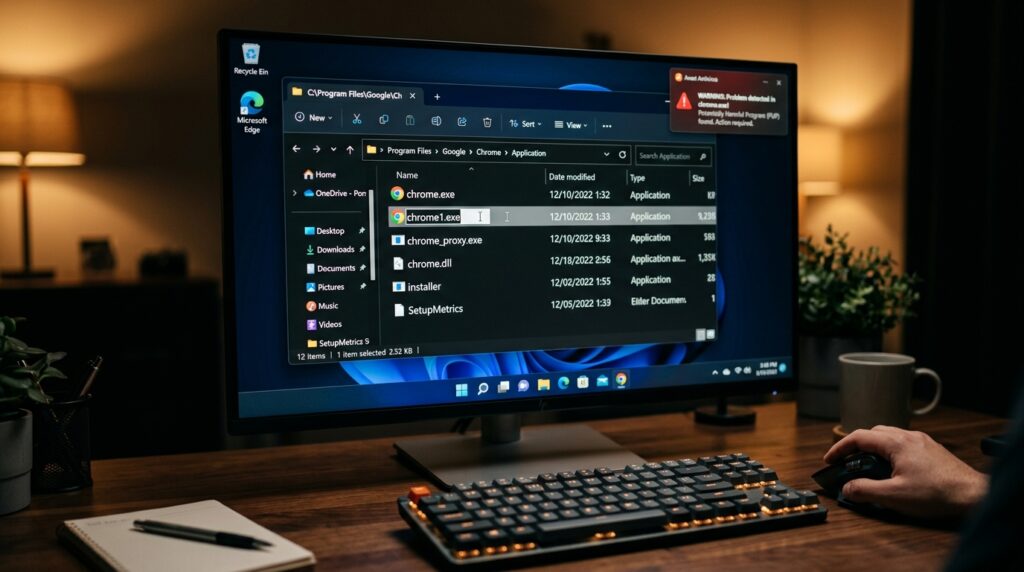
Because third-party antivirus apps are aggressively targeting the specific process name chrome.exe right now, you can trick your system into letting Chrome run cleanly by renaming the file.
- Close Chrome completely. Open your Windows File Explorer and navigate to:
C:\Program Files\Google\Chrome\Application - Look for the application file named
chrome(orchrome.exe). - Right-click it, select the rename icon, and change it to
chrome1.exe. - Right-click your new
chrome1.exefile, select Show more options, and click Create shortcut to place a fresh icon on your desktop.
[Old Path] C:\...\Application\chrome.exe  ──► (Blocked by Antivirus Hook) ──► CRASH
[New Path] C:\...\Application\chrome1.exe ──► (Bypasses Conflict)       ──► STABLE
Try launching the browser from that new shortcut. If the crashes instantly disappear, your third-party antivirus is the culprit. You can either leave it renamed temporarily, pause your antivirus shields, or rely on built-in Windows Defender until an official software patch drops.
Step 2: Swap Your Graphics Backend via Chrome Flags
If your browser stays open long enough to type in the address bar but crashes when you play media or scroll image-heavy sites, the graphics engine is choked.
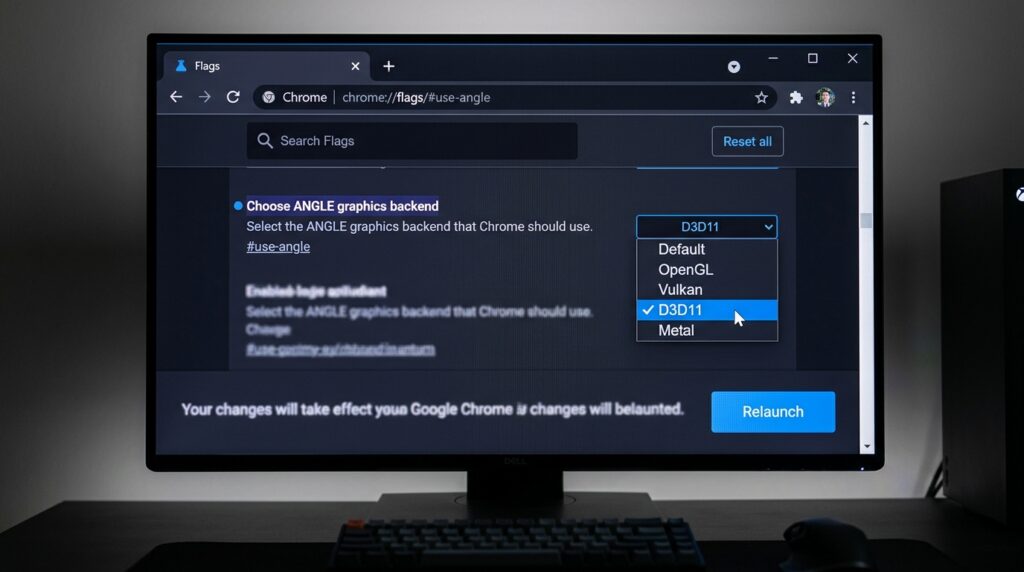
- Open a fresh Chrome tab, type
chrome://flags/#use-angleinto the URL bar, and hit Enter. - Look for the setting labeled “Choose ANGLE graphics backend”.
- It will likely be set to Default. Click the dropdown menu and switch it to D3D11 or D3D9.
- A blue Relaunch button will pop up at the bottom right. Click it.
This forces Chrome to bypass the broken rendering framework introduced in recent Windows updates and use a highly stable, older DirectX layer instead.
Step 3: Kill Hardware Acceleration
If changing the ANGLE backend didn’t completely stop the freezing, you need to lift the rendering weight off your graphics card entirely to test your drivers.
- Click the three vertical dots in the top right corner of Chrome and open Settings.
- On the left-hand sidebar, click on System.
- Locate the toggle that says “Use graphics acceleration when available” and turn it OFF (the switch should turn gray).
- Click the Relaunch button that appears.
Note on Performance: Turning this off means your CPU handles web rendering instead of your graphics card. It stops the crashing completely, but if you notice heavy 4K videos lagging later on, it means you need to go to Device Manager, expand Display Adapters, and update your NVIDIA/AMD graphics drivers before turning this switch back on.
Step 4: Rebuild a Corrupted User Profile
If Chrome crashes instantly on launch and won’t even let you access the settings menu, your local user profile folder is likely ruined. We can force Chrome to build a fresh, uncorrupted one without deleting your cloud-saved bookmarks.
- Press the Windows Key + R on your keyboard to open the Run dialog box.
- Paste the following path exactly and hit Enter:
%LOCALAPPDATA%\Google\Chrome\User Data - Scan the folder for a directory named Default.
- Right-click it and rename it to Backup Default.
- Restart Chrome.
Chrome will open up looking brand new because it generated a pristine, clear profile. Once you log back into your Google account, your synced passwords and extensions will populate back down automatically.
Common Mistakes to Avoid When Fixing Chrome
When a browser breaks down, it’s easy to get desperate and try random forum advice. Make sure you avoid these common missteps:
- Mistake #1: Thinking a Standard Reinstall Wipes Everything.If you go to Windows Settings, hit “Uninstall,” and then download the Chrome setup file again, you aren’t actually fixing a corrupted file system. The default Windows uninstaller leaves behind your entire
User Datafolder in AppData. If the corruption is hidden inside that profile folder, a standard reinstall will just pull the old error straight into the new app. Use an uninstaller utility or manually clear out the AppData folders for a truly clean slate. - Mistake #2: Ignoring Background Extensions.Sometimes it isn’t Windows or Google at fault; it’s a rogue extension. Adblockers, malicious tab managers, or outdated discount-code finders can leak memory until Chrome running on Windows 11 hits a hard wall. Always test your stability by running in Incognito Mode (Ctrl + Shift + N) for 15 minutes. If Incognito never crashes, it means your core browser is fine, and you need to head to
chrome://extensionsto clear out your add-ons one by one. - Mistake #3: Running Multiple Antiviruses Simultaneously.With the recent Gen Digital conflict, having Avast running alongside active Windows Defender policies creates a localized war in your system RAM over which app gets to scan Chrome’s memory hooks. Pick one lane and stick to it to avoid processing bottlenecks.
The Bottom Line
A browser crash is an absolute productivity killer, but on Windows 11, it’s usually just a symptom of modern software moving too fast for its own security hooks.
By renaming the executable to step around antivirus conflicts, or switching your graphics engine to D3D11, you can easily bypass the current stability bugs without losing any of your local files or extensions.
Give these tweaks a shot before wasting hours reinstalling your operating system. If things are still completely locking up after rebuilding your profile, consider downloading the Chrome Beta channel or hopping over to Microsoft Edge temporarily—since they run on slightly different Chromium pipelines, they often sleep right through the bugs affecting the stable release build.
This video walks through how to safely modify your Windows registry keys to permanently disable Multi-Plane Overlays (MPO) if your browser continues to freeze during fullscreen media playback.