
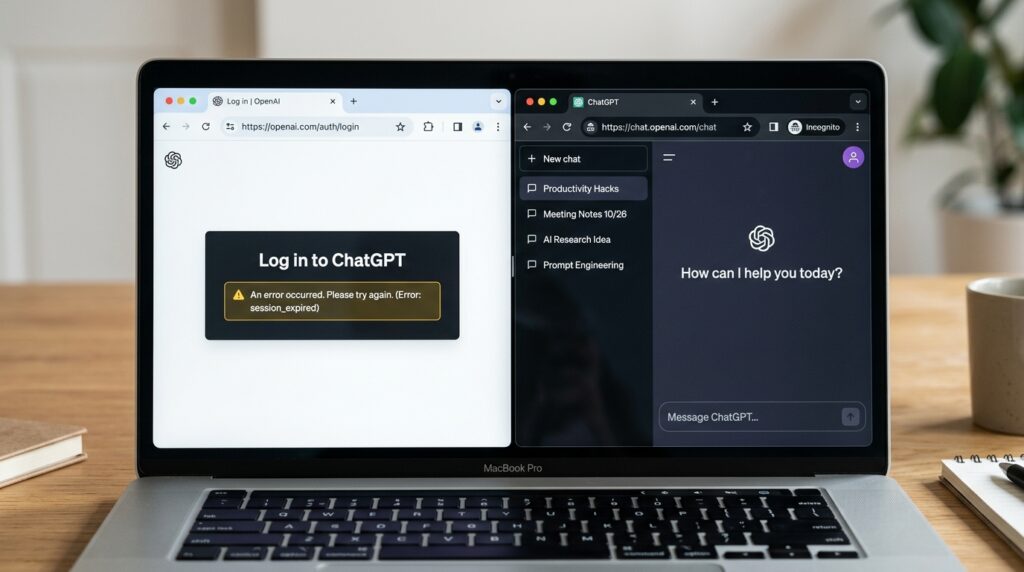
You know that sinking feeling when you are late for a project, rush to open ChatGPT, and get trapped in an endless login loop? You type your password or click “Continue with Google,” the screen flashes, the little loading circle spins, and… it dumps you right back onto the blank login page. No clear error code. No helpful tip. Just a broken gateway keeping you from your dashboard.
I hit this exact wall last week while trying to log in from a remote workspace. I tried three times, convinced I was just fat-fingering my password, before realization set in: the authentication flow was completely stuck.
Because OpenAI constantly updates its security infrastructure to manage millions of concurrent users, the way ChatGPT handles logins has become incredibly strict. A single mismatched cookie, an overly aggressive browser extension, or an unexpected IP flag can break your access instantly.
The good news is that you rarely need to create a new account or wait hours for support. Let’s walk through the exact practical steps to shatter the login loop and get you back into your workspace.
Why Is Your ChatGPT Login Failing?
Before we start tweaking settings, it helps to know what is actually happening behind the curtain. When you click that login button, your browser initiates a multi-step verification handshake with auth.openai.com and Cloudflare (OpenAI’s security layer).
If that handshake gets interrupted, the login fails. In my experience, the breakdown almost always happens because of one of these culprits:
- The Social Auth Mismatch: You originally signed up via Apple or Google, but you are trying to log in using a standard email and password combo (or vice versa).
- Cloudflare Security Traps: If your network routing looks slightly unusual, Cloudflare’s “Checking your browser” human verification loop can silently freeze, blocking the final login script.
- Stale Session Tokens: Old, expired tracking cookies from a previous session are confusing the authentication handler.
The Step-by-Step Fixes to Break the Loop
Work through these troubleshooting steps in order. We will start with the easiest, non-destructive fixes before moving on to deeper network settings.
1. Identify Your Exact “Sign-In Method” (The #1 Mistake)
This sounds incredibly basic, but it is the single most common reason users get locked out. OpenAI does not automatically merge accounts if they use the same email address through different doors.
If you originally created your account by clicking “Continue with Google,” you must use that exact button every single time. If you manually type your Gmail address into the standard email box instead, the system gets confused, throws an authentication mismatch, or hangs indefinitely.
Takeaway: If you are stuck, open a private window and systematically test the alternate login buttons (Google, Microsoft, or Apple) to see if your data is tied to a social sign-on instead of a manual password.
2. The Incognito Window Test
Before you start clearing your browser settings and losing all your open tabs, let’s isolate whether the issue lives inside your main browser profile.
Open a new Incognito or Private Browsing window and navigate straight to chatgpt.com.
- If it works: The issue is definitively caused by something saved in your main browser—likely a corrupted cookie or a rogue extension.
- If it still fails: The problem is deeper, pointing toward your network connection or OpenAI’s backend servers.
3. Clear the Authentication Cookies
If the Incognito test proved your browser profile is holding a grudge, you need to flush the specific cookies managing the OpenAI login gate. You don’t need to wipe your entire internet history for this.
For Google Chrome, Brave, or Microsoft Edge:
- Open the ChatGPT login page.
- Click the small padlock or settings icon sitting on the far left of your address bar (URL bar).
- Select Site settings or Cookies and site data.
- Click Manage cookies and site data.
- Look for anything containing
openai.com,chatgpt.com, orauth0.openai.comand click the trash icon next to them. - Close the tab, open a fresh one, and try logging in again.
4. Bypass the Cloudflare Verification Loop
Are you stuck on a screen that continuously spins while saying “Checking if the site connection is secure”? That is Cloudflare failing to validate your browser environment.
This happens frequently if you are running script blockers (like NoScript), privacy tools (like Privacy Badger), or certain ad-blockers (like uBlock Origin). These extensions block the background JavaScript Cloudflare uses to prove you aren’t a automated bot.
To fix this, temporarily disable your ad-blocker entirely for the login page, give the browser a hard refresh using Ctrl + Shift + R (or Cmd + Shift + R on Mac), and complete the puzzle or check-box challenge if it appears.
5. Pause Your VPN or Proxy Traffic
If you use static residential proxies, multi-login profiles, or standard consumer VPNs to manage your online footprint, ChatGPT’s security filters will occasionally flag your login attempt as “Suspicious Activity.”
OpenAI keeps a massive, constantly updated blocklist of known VPN server IP addresses to protect their servers from scraping networks. If your current VPN node happens to share an IP with an aggressive bot network, you will be locked out.
Turn off your VPN or proxy client completely. If you are on a public or corporate Wi-Fi network that uses heavy firewalls, disconnect and switch over to your mobile phone’s cellular data hotspot. Trying a totally different network routing fixes a massive chunk of unexplained login failures.

Common Missteps: What Not to Do
When you are locked out, frustration can lead to bad troubleshooting decisions. Keep these parameters in mind:
- Don’t Spam Failed Passwords: If you guess your password incorrectly five times in a row, OpenAI’s automated rate-limiting defense will lock your IP address out for 15 to 30 minutes under a “Too many attempts” flag. If you don’t know it, stop guessing and use the Forgot Password link immediately.
- Don’t Forget to Check Your Device Clock: It sounds wild, but if your computer or phone’s internal system time is off by even two minutes compared to the real world, the secure SSL/TLS tokens used during login will be rejected as expired. Double-check that your device is set to “Set time automatically.”
- Don’t Panic If the “Continue” Button Is Missing: If the social login buttons completely fail to render on your screen, it means a background script failed to load. Don’t re-install your OS; simply clear your browser’s local cache or try an alternate browser like Firefox or Edge.
Is It Just You, or Is OpenAI Down?
Sometimes, you can execute every single trick perfectly and still find yourself stuck at the door. If nothing is working, it is highly probable that OpenAI’s authentication infrastructure is experiencing a partial or full outage.
Before throwing your laptop out the window, open a new tab and check the official status line at status.openai.com. Look specifically at the “Authentication” or “Web App” bars. If you see yellow or red marks indicating an active incident, no amount of local troubleshooting will help. Save your energy, step away from the keyboard for half an hour, and let their dev team patch things up on the backend.
Final Thoughts
A stuck login screen is a massive momentum killer, but it is almost always caused by a temporary communication breakdown between your browser profile and OpenAI’s strict security gauntlet.
By systematically ruling out social sign-on confusion, isolating your extensions via Incognito mode, and verifying your network routing, you can generally bypass the loop in under two minutes. Keep your browser updated, keep your extensions managed, and you won’t have to face the dreaded endless loop again.